Task 1Turn rough notes into a donor update email.
The notes are already in front of you. No files, apps, browser state, or repo access required.
The Agency Fund Presents

Six sections moving from setup to reusable brand rules, a branded deck, a daily meeting brief, and a scheduled task. Each beat has the exact prompt to run and the proof step to check before moving on.
6 blocks · 31 steps
Up Next / Meetup #2
May 29, 2026 · 6pm EAT · Online
View Details →The design system should not stop at colors and buttons. It should help you make real work: reports, dashboards, donor updates, and board materials.
Now upload a CSV and ask Claude to add one chart section to the same design-system.html file.
Use one of these:
If you do not have a CSV handy, use the workshop fallback. The point is the workflow, not the dataset.
Use the workshop fallback CSV: sample-fundraising-opportunities.csv.
It has these columns:
opportunity,source,type,estimated_amount_usd,deadline,fit_score,next_stepFor the fallback, use this decision question:
Which funding opportunities should Riverbend prioritize before June 15?Use these grouping hints:
Group by opportunity type. Show estimated amount, deadline, fit score, and next step.I am attaching this CSV file to this message:
[CSV file name or source]
Analyze it and add a new "Data visualization" section to design-system.html.
First, inspect the actual CSV headers and rows. Choose one chart that helps answer this question:
[decision or question this CSV should support]
Use these column or grouping hints if they fit the file:
[key columns, categories, dates, totals, or grouping rules]
If those hints do not match the CSV, ignore them and choose a better chart from the actual data. Do not assume the fallback fundraising schema unless that is the file I attach.
Then update design-system.html with a branded chart component.
Before styling the chart, use Chrome to study these shadcn chart examples:
- https://ui.shadcn.com/charts/area
- https://ui.shadcn.com/charts/pie
Use those pages as visual references for chart aesthetics:
- card container
- clear title and short description
- muted grid lines
- compact axis labels
- one or two brand colors from DESIGN.md
- legend or caption only if useful
- clean report/dashboard feel
Do not import shadcn, React, Recharts, Tailwind, or external libraries.
Recreate the visual style in plain HTML, CSS, and inline SVG so the file still opens directly in a browser.
Add a short note below the chart explaining what the chart shows and what decision it supports.We are copying the design pattern, not the dependency. The useful parts are the quiet card, clear title, muted grid, compact labels, and clean report feel.
That lets the preview file stay portable: one HTML file, no install step.
Block 2 uses real inputs from your real organization. If either of these is missing, take two minutes now to grab them.
Ideally a .png or .svg of your logo on a transparent or clean background. If you do not have the file handy, take a screenshot of your homepage right now. Either works.
One sentence, no jargon. One of these shapes:
Example: “We fund frontier evidence that makes aid dollars go further for people in poverty.”
The logo gives Claude a visual anchor. Without it, it invents a brand feel from adjectives. With it, the design system we extract in Block 2 inherits your actual colors and shapes.
The one-liner anchors every piece of copy we generate. Decks, briefs, and any downstream prompt all trace back to this sentence. A vague mission yields vague slides. A sharp mission yields sharp slides.
No problem. Do this now, before Block 2 starts:
That is enough. We improve both in session.
Claude is good at generating. The problem is that without rules, it generates from averages: average websites, average decks, average nonprofit language, average colors.
That is not a model failure. It is a context failure.
Before we ask Claude to make anything important, we are going to give it reusable rules. We will save those rules as DESIGN.md: a brand brief Claude can read before making decks, reports, charts, and emails.
Run this intentionally under-specified prompt in a fresh chat:
Make a one-page donor update for my organization.

It should feel branded, credible, and polished.
Include a short headline, three impact bullets, one simple chart idea, and a closing call to action.

My organization is:
[one sentence about your org]
Do not give Claude your logo, colors, fonts, or examples yet. The point is to see what it invents.
Cowork may ask a follow-up question. That is useful: it is trying to flesh out the ask before it works. Answer with the shape of the artifact and the research scope, but still do not give brand rules yet:
Please make it an HTML page.

Use web search to look up public information about the organization.

Cover the organization from founding through today.
Save the result somewhere you can compare later. A screenshot is enough.
The output may be useful, but it will probably feel generic. Watch for:
This is the reason Block 2 exists.
After Block 2, you will run the same kind of task again, but with DESIGN.md in context.
The difference should be visible:
That is the transition from prompting Claude to briefing Claude.
Do this before running the Block 4 meeting brief prompt. The prompt can only work cleanly if Claude can see the same surfaces you expect it to use.
https://mail.google.com.Ask Claude:
Use Chrome. Open Google Calendar, Gmail, LinkedIn, and Slack in separate tabs. Tell me whether each one is signed in. If Slack is unavailable, say the exact blocker. Do not read or summarize any private content yet.Claude reports that Calendar, Gmail, and LinkedIn are signed in, Slack is either signed in or has a named blocker, and Gmail is the only mail surface open for drafting or sending.
If Calendar, Gmail, or LinkedIn fails, fix that surface before running the meeting brief. If Slack fails, keep going only if the prompt will write Slack blocked: [reason] in the source notes.
[date] - Meeting brief (the date should be tomorrow, or the next Monday if tomorrow falls on a weekend).If all four are true, the prompt worked enough to schedule safely. The workflow produced a reviewable artifact without requiring a live send.
Source notes are part of the proof. They should say what came from Calendar, whether LinkedIn was readable, whether Gmail context was found, and whether Slack context was found, not found, or blocked.
If you explicitly approved sending, also open Sent Mail and confirm the same subject appears there. Sent Mail is optional for the workshop. Drafts is the default proof.
Try these in order:
https://mail.google.com and every other mail client closed.The draft is the artifact. If you cannot find it, do not schedule the live Gmail version yet. Use the repair path, switch to the demo-safe prompt, or rerun the brief after fixing access. Block 5 should schedule a prompt you have seen produce proof.
Do not debug the browser in front of the room for more than two minutes.
The useful lesson is not “watch someone fix account permissions.” The useful lesson is how to keep the workflow bounded, visible, and honest when one source or write step fails.
Use the first branch that matches what happened:
Paste this if the run stalls, opens the wrong mail surface, or cannot prove the artifact:
Pause and report the exact state in four lines:

1. Target date:
2. Sources successfully read:
3. Draft surface used:
4. Proof currently visible:

If Gmail Drafts is not visible within two minutes, stop trying to create the Gmail draft. Return the complete meeting brief in this chat with subject `[target date in YYYY-MM-DD format] - Meeting brief`, label it `Blocked Gmail draft`, and list the exact blocker. Do not claim a Gmail draft exists unless you verified it in Gmail Drafts.Switch immediately to the demo-safe prompt in the live or demo-safe path card.
Say:
Browser access is the variable. I am switching to public-safe sample context so we can still inspect the prompt shape, source notes, proof gate, and scheduling handoff.
Then paste the demo-safe prompt.
Accept these proof states:
The room sees either a verified Gmail draft or a clearly labeled fallback draft. Nobody leaves thinking a scheduled task is safe just because the chat sounded plausible.
Your saved prompt is ready for Block 5 when someone else could schedule it without asking what you meant.
Check that the note includes:
You can move to Block 5 when the saved note answers three questions:
If any answer is missing, fix the saved prompt now. If the only proof was a plain-text fallback, do not schedule the live Gmail version yet. Block 5 should schedule a verified prompt, not invent a new one.
Before Claude touches Gmail, you can say exactly what it is allowed to do.
Fill this in:
For this run, Claude should brief [tomorrow / next Monday] and include [first 1-3 non-declined meetings / all non-declined meetings] using [Calendar, LinkedIn, Gmail, Slack / demo-safe context]. It may create a Gmail draft. It may send only if I explicitly approve after reviewing the draft.Use these rules before the prompt starts:
Slack blocked: [reason].You are ready to run the prompt when four things are true:
During the browser run, check whether Claude is staying inside the rules you gave it.
LinkedIn not available.Use a short correction and continue from the current step:
Pause. Follow the meeting brief rules exactly. Apply the meeting scope before researching attendees. Exclude declined meetings only. Do not guess missing LinkedIn details. Add source notes for each in-scope meeting, including Slack found, not found, or blocked. Use Gmail only for the draft. Do not send unless I explicitly approve. Continue from the current step and verify the final draft in Gmail Drafts.You saw Calendar, LinkedIn where applicable, Gmail, and Slack used or labeled as blocked in the expected order. The draft includes source notes for each in-scope meeting and was verified in Gmail Drafts.
Open design-system.html again and inspect the chart section.
Check:
design-system.html with the chart visibleDESIGN.mdAsk Claude:
Revise the chart section so it uses the brand rules in DESIGN.md more clearly.

Keep it quiet and report-like. Do not add decorative gradients or unrelated colors.
Use the primary or accent colors from DESIGN.md and keep grid lines muted.Ask Claude to audit the CSV parsing:
Check the chart data against this CSV:
[CSV file name or source]

The chart was supposed to support this decision or question:
[decision or question this CSV should support]

Show me the rows and columns you used, the aggregation you performed, and the final values plotted in the chart.
If the CSV has quoted fields or commas inside cells, use a proper CSV parser instead of splitting on commas.Take a screenshot of design-system.html with the chart section visible. This is the final Block 2 artifact: your brand rules applied to real data.
Check that Block 2 produced enough real brand material to drive a deck:
DESIGN.md is saved in the Cowork projectDESIGN.md contains real # hex valuesdesign-system.html opened successfully, or you have a screenshot of the previewIf DESIGN.md is weak, repair it before drafting:
Before we make the deck, audit DESIGN.md.

Check whether it has:
- real hex colors
- font families
- spacing or radius rules
- button, card, link, or section patterns
- source notes for the main visual choices

If anything is missing, revisit the source website with Claude in Chrome and update DESIGN.md with actual computed values. Mark uncertain values as uncertain instead of inventing them.
If the room needs a clean demo path, use the fallback files:
Use Block 3 to make one small, useful deck. Do not try to make every deck your organization will ever need.
Choose one:
Use HTML as the first slide format. The next card will ask for a browser-viewable draft, not a PPTX first, because HTML is faster to inspect and revise live.
Stay in chat until the brief is specific enough to draft. The useful output from this card is not a file yet. It is a clean brief you can paste into the HTML draft prompt.
Make the HTML PPTX-ready:
Use this if the deck needs to explain an organization, project, program, or product.
Copy this prompt and fill in the variables:
Using DESIGN.md and design-system.html from this project, prepare a concise brief for a 5-slide organization deck.

Organization, project, program, or product:
[organization name]

What it does:
[one sentence on what it does]

Audience:
[target audience]

Ask or next step:
[one specific ask or next step]

Proof points:
[one or two real proof points, or NEEDS FACT if missing]

Constraints:
[anything the deck should avoid, emphasize, or verify]

Slide format:
HTML first, with one 16:9 section per slide and clear PPTX export affordances. Keep editable text as real text. Use simple CSS, stable class names, and image fallbacks only where a visual treatment would be hard to translate into PowerPoint.

Return:
1. The deck goal in one sentence.
2. The audience and what they need to believe.
3. The strongest core message.
4. A 5-slide outline with one sentence per slide.
5. A short format note for the HTML draft and later PPTX export.
6. Any missing facts I need before drafting the deck.

Do not draft the full deck yet. Help me make the brief clear first.Use this if the deck needs to explain you and what you do.
Copy this prompt and fill in the variables:
Using DESIGN.md and design-system.html from this project, prepare a concise brief for a 5-slide personal deck.

Name:
[your name]

Work:
[one sentence on the work you do]

Audience:
[target audience]

Goal:
[what you are looking for]

Recent highlights:
[one or two recent highlights, or NEEDS FACT if missing]

Constraints:
[anything the deck should avoid, emphasize, or verify]

Slide format:
HTML first, with one 16:9 section per slide and clear PPTX export affordances. Keep editable text as real text. Use simple CSS, stable class names, and image fallbacks only where a visual treatment would be hard to translate into PowerPoint.

Return:
1. The deck goal in one sentence.
2. The audience and what they need to understand.
3. The strongest positioning message.
4. A 5-slide outline with one sentence per slide.
5. A short format note for the HTML draft and later PPTX export.
6. Any missing facts I need before drafting the deck.

Do not draft the full deck yet. Help me make the brief clear first.The goal is a 5-slide working draft. You can expand it later. For now, one path, one audience, one clear next step.
Claude in Chrome is the browser extension that lets Claude see and control your Chrome browser as you. When the brief prompt runs, Claude opens tabs in your actual Chrome session. It reads what you would read if you opened those pages yourself.
You do not hand Claude a password or an API key. The extension rides on the sessions already open in your browser. If you are logged into Gmail, LinkedIn, Slack, and Google Calendar in Chrome, Claude is logged into them too for the duration of the task. Log out of Chrome and Claude loses access.
That is the whole security model. If you would not want Claude to see a tab, close it before running the brief.
Two ways Claude can reach Gmail, Calendar, and Slack:
For the demo we use Chrome so you can see every step. Block 5 is where you start swapping in connectors for the things you run every day.
https://mail.google.com, LinkedIn, Google Calendar, and Slack in ChromeIf the extension is not active, Claude falls back to asking you questions it cannot answer. You will see it stall rather than read.
For this workshop, Gmail is the only approved draft or send surface. Browser agents are literal: if another mail client is already open, they may use it. Keep Gmail open, close other mail clients, and make the prompt name Gmail at https://mail.google.com.
Draft first. Sending is optional and only happens after human review.
Open Claude Desktop, go to Connectors, and look for Claude in Chrome.
You are ready when it shows a green checkmark and Chrome is open on your screen.
No checkmark, or Claude in Chrome is missing?
If the checkmark still does not appear, quit and relaunch Claude Desktop. The Connectors list refreshes on startup.
If Claude in Chrome is still missing after relaunch, your plan, rollout state, or organization admin settings may be blocking it. Stop debugging and switch to the demo kit. Use sample DESIGN.md, sample PLAN.md, and sample fundraising CSV for the rest of Block 2.
The live extraction path runs through Claude in Chrome. Without the connector, the extract step can fail silently and you burn five minutes on a recoverable setup issue. Catching it here keeps the block on time.
You either have the green checkmark, or you have chosen the demo kit before the extraction prompt starts.
Claude in Chrome puts a Claude sidebar directly inside your browser. During the DESIGN.md exercise, we’ll ask Claude to browse your org’s website live and extract your brand colours and design patterns. Without the extension, Claude can only see what you paste in. With it, Claude can read any page you’re looking at.
Claude in Chrome is a beta feature for paid plans. Admin settings, browser profile issues, and rollout state can still affect what appears in your account. Treat this card as an access check, not a promise that every account will see the same option.
If your account does not show Claude in Chrome, do not spend the workshop trying to force it. Use the demo kit for Blocks 2 and 4, then repeat the live-browser path later when access is available or your admin enables it.
For the workshop, use trusted, low-risk sites only. Do not use Claude in Chrome on financial, legal, medical, or other sensitive pages during the live demo.
Open Chrome and go to the Claude extension on the Chrome Web Store. The publisher is Anthropic.
Click Add to Chrome and confirm the prompt.
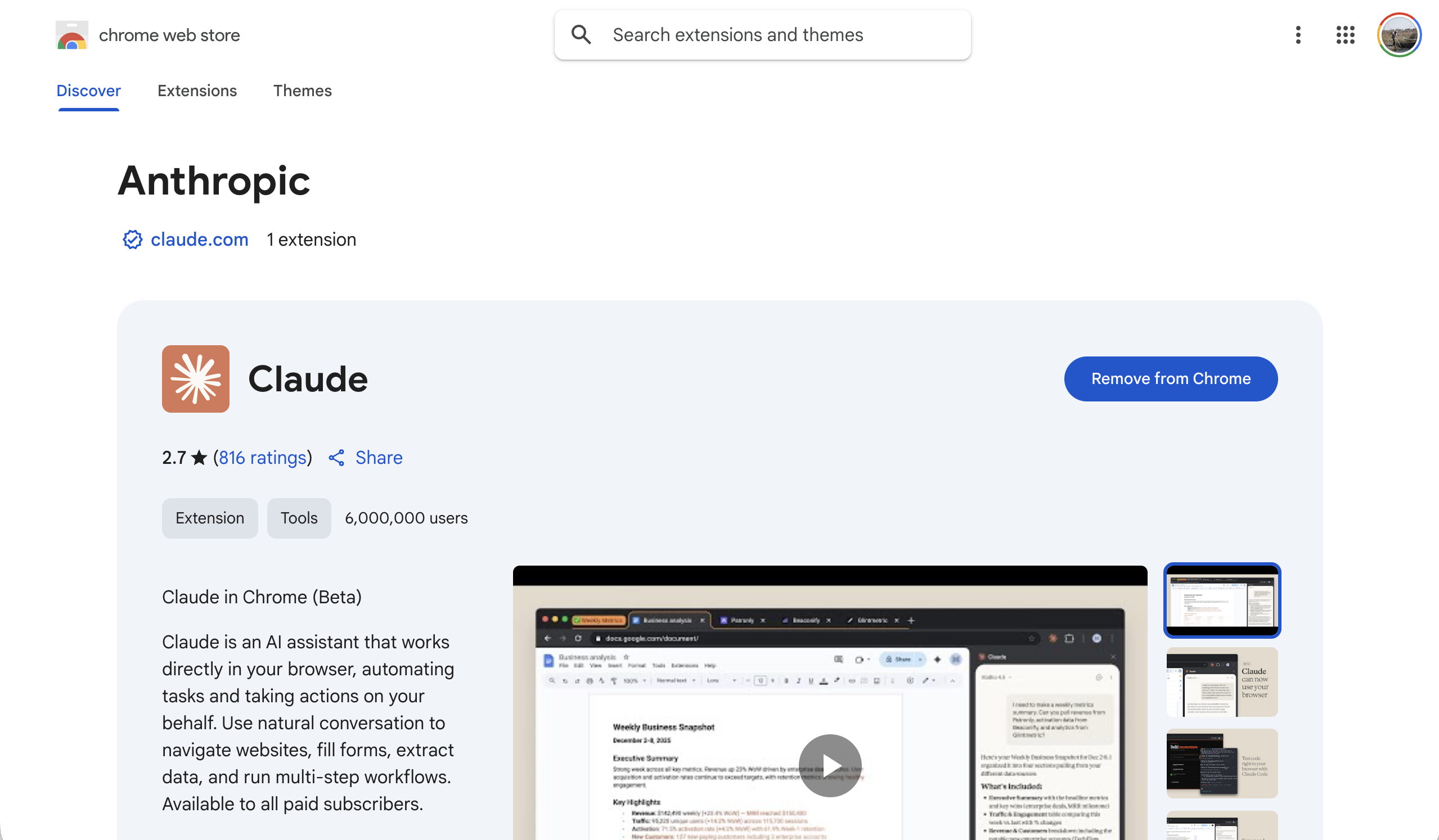
You’ll see a small Claude icon appear in your Chrome toolbar once the install completes.
The extension doesn’t activate automatically. You need to turn it on in Claude Desktop for the conversation where you want browser access.
Claude will now be able to browse pages you have open in the same Chrome window.
Chrome profiles keep their extensions separate. If you use more than one Chrome profile (common if you have a personal and a work Google account), install the extension in each profile where you want it to work.
For today’s session, install it in the profile where you are logged into LinkedIn and Google Calendar. That’s the profile Claude will use to read those pages during the exercise.
Once installed and connected, clicking the Claude icon in your toolbar opens the sidebar. You can ask Claude about whatever page you’re currently viewing.
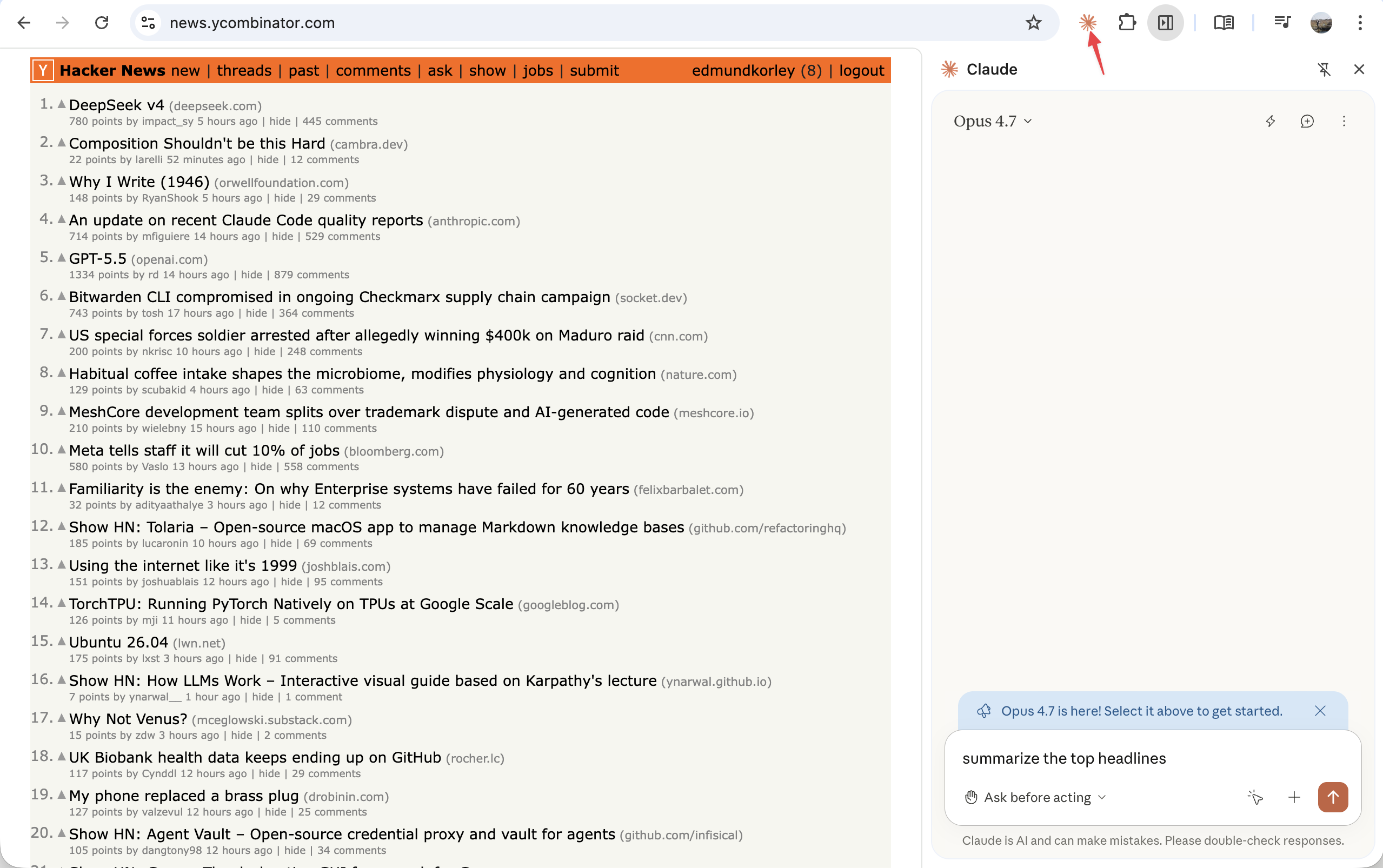
Write this in your notes:
Claude in Chrome is not available in my account yet, or my admin has not enabled it. For the live workshop I will use the demo kit path, and I will repeat the browser steps later when access is enabled.That is a valid prework pass. The live session is about prompt shape, source discipline, proof, and fallback behavior. Browser access is only one way to run the workflow.
Claude at claude.ai is great for quick questions. But the desktop app unlocks two things the browser tab can’t do:
These live in one app. If you only use the browser, you’ll miss the surfaces the workshop uses for real work.
Go to claude.com/download. You’ll see download options for macOS, Windows, and mobile.
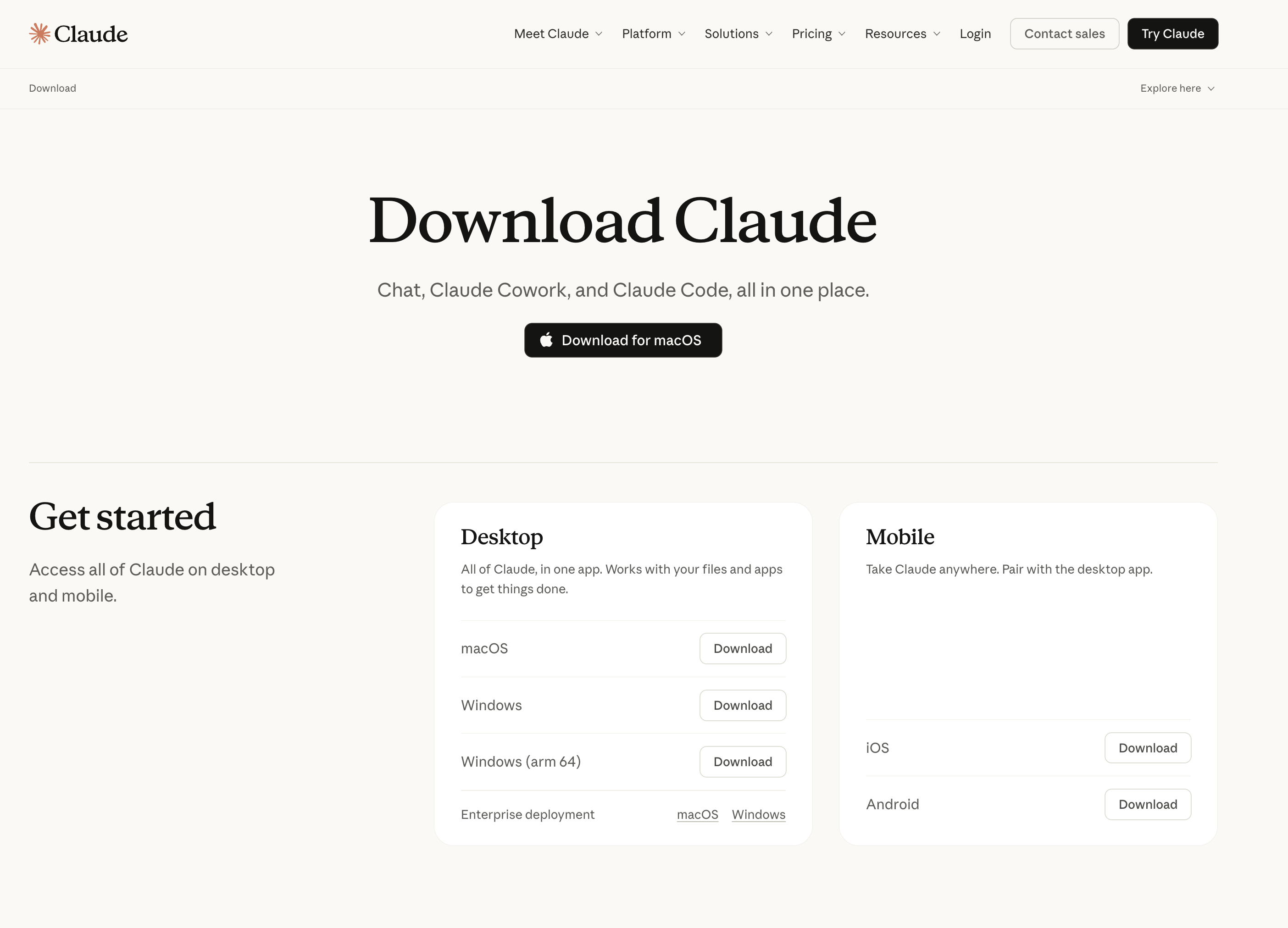
Download the version for your operating system. macOS users: open the .dmg and drag Claude to your Applications folder. Windows users: run the installer.
Open Claude Desktop and sign in with your Claude account. Use the same email and password as claude.ai.
The default view is Claude Cowork. It greets you with “Let’s knock something off your list” and shows recent tasks in the sidebar.
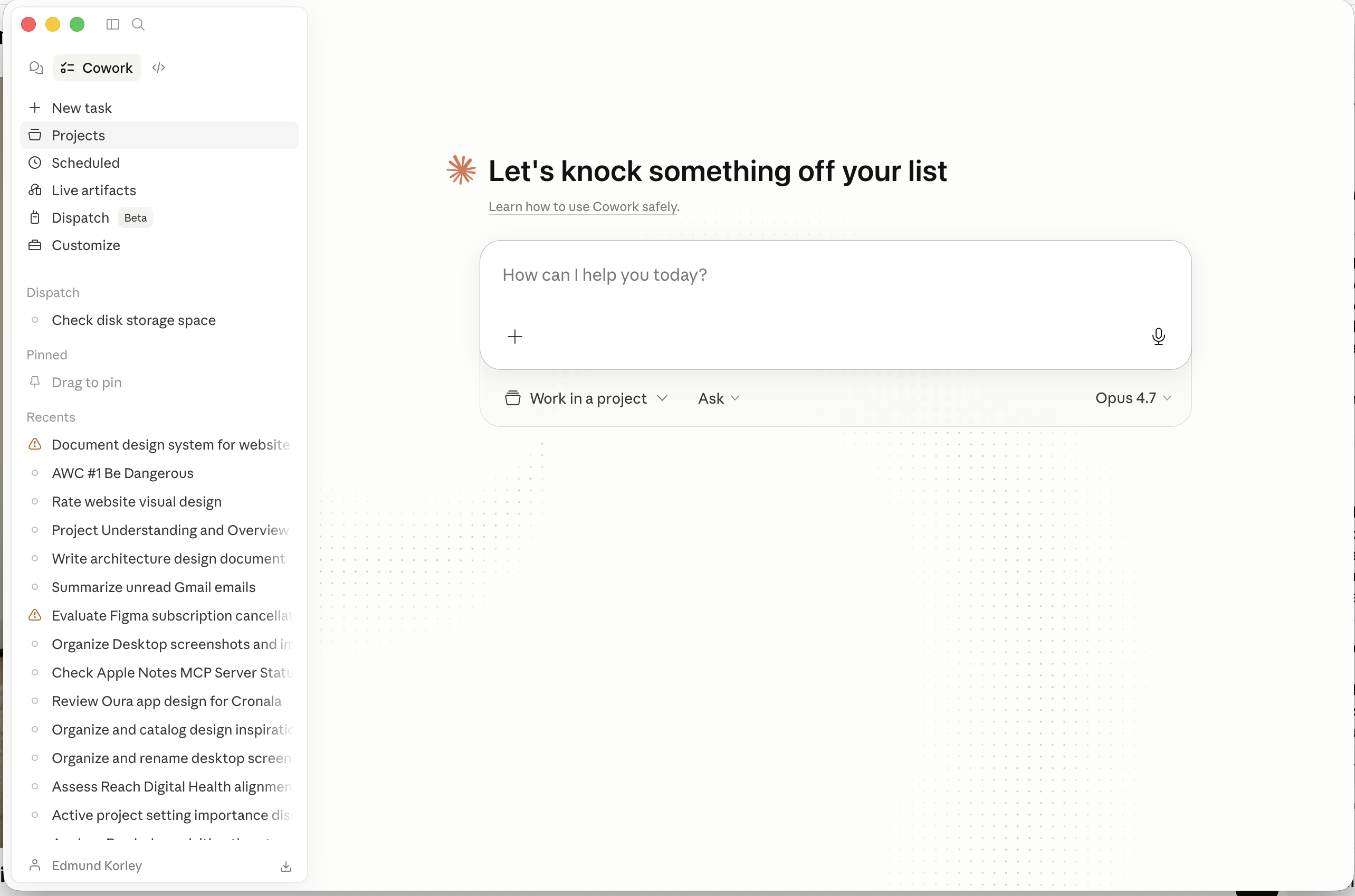
This is the hub. Claude Cowork is the default view. Claude Code is one click away at the top if you need it later.
In the next step, you’ll give Cowork your homepage URL and it will pull the following directly from your live site:
You don’t need to find these yourself. Cowork handles the extraction.
Your mission line. One sentence describing what your organisation does and who it serves. Cowork can’t write this for you. It’s the anchor for every piece of copy we generate in Blocks 2 and 3.
Two formats that work:
Write it now. Keep it plain, no jargon, no qualifiers. Claude will refine it in session.
Example: “We fund frontier evidence that makes aid dollars go further for people in poverty.”
Some sites block automated scraping or have no CSS custom properties on :root. If extraction comes back incomplete, the fallback is simple: take a screenshot of your homepage, drop it into Cowork’s chat, and ask Claude to identify the colours and font from what it can see visually. It won’t be as precise, but it’s enough for Block 3.
Block 4 is the live demo where Claude reads your calendar, looks up the people you’re meeting, scans Gmail for context, and drafts a meeting brief. This will work slowly with the Claude in Chrome connection but will be much faster if you set up the relevant connectors. They are point-and-click OAuth, no terminal, no install.
You need Gmail and Google Calendar for the session. Slack is useful if your team uses it, but it is not a hard blocker. If Slack is not available, the meeting brief should say Slack blocked: [reason].
In Claude Desktop, click the gear icon to open Settings, then click Connectors in the left sidebar.
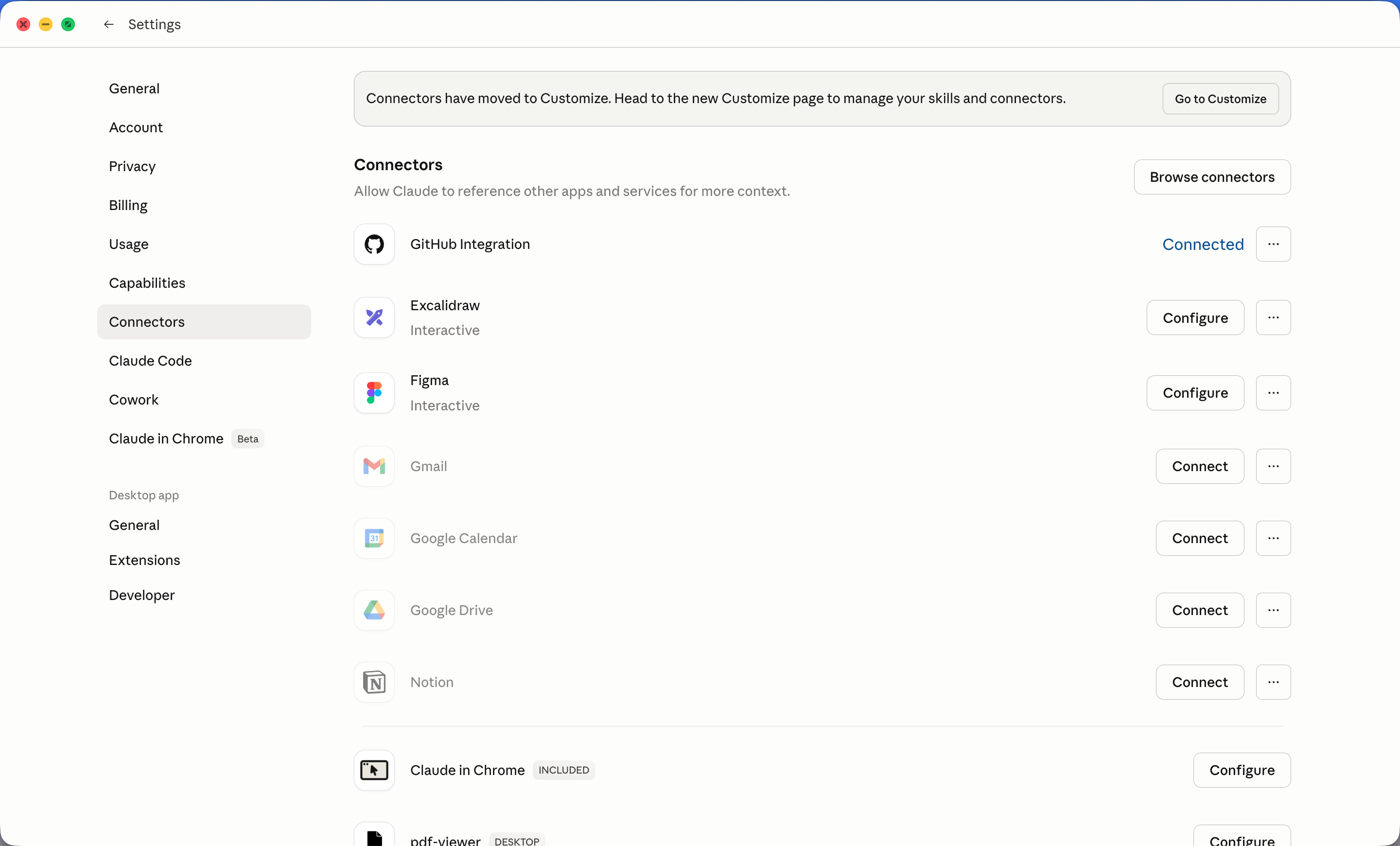
You’ll see a list of apps Claude can connect to. Anything you’ve already connected shows Connected in blue. Anything else shows a Connect button.
If you have multiple Google accounts, double-check you picked the right one. The connector uses whichever account you signed in with.
If you’re in multiple Slack workspaces, you can connect more than one. Block 4 only needs the main one your team uses.
After the connectors you will use show Connected, run the next TEST card. It checks that Claude can see Calendar and Gmail, plus Slack or a named Slack blocker, while asking for only access signals, not private summaries.
Do not skip the TEST card if you are joining live. A connector that looks connected but cannot return data will slow down Block 4.
... menu next to each connected app where you can revoke access.Open a new chat in Claude Desktop. Keep this lightweight. You are checking access, not asking Claude to summarize anything sensitive.
Paste this:
Check whether you can access my Google Calendar, Gmail, and Slack connectors.

For Calendar, tell me only whether you can see today's calendar and how many events are visible.
For Gmail, tell me only whether you can see my inbox and whether at least one message is visible. Do not name the sender, subject, or message content.
For Slack, tell me only whether Slack is connected and whether at least one workspace or channel is visible. Do not name the workspace, channel, sender, or message content.

Do not summarize private content.Claude returns a real signal from Calendar and Gmail without asking you to reconnect. Slack is a pass if it returns a real signal or you explicitly write Slack blocked: not connected.
Good enough:
Slack blocked: not connected.Open Settings > Connectors in Claude Desktop. Disconnect and reconnect the failed app, then run the same smoke test again.
If Slack is not available in your organization, write Slack blocked: not connected in your notes. Block 4 can still run with Calendar, Gmail, and LinkedIn, but the brief should name the Slack blocker.
Claude gives you a compact handoff that you could paste into a new chat without losing the work.
Run this at the end of any long or messy thread:
Summarize this conversation as a handoff brief for a fresh Claude chat.

Include:
- goal
- decisions already made
- files, links, or facts referenced
- open questions
- risks or assumptions
- the exact next prompt I should run

Keep it concise enough to paste into a new chat.The handoff is useful only if it removes clutter. Before you paste it into a new chat, confirm it has:
Claude can only use what fits in its context window: your messages, Claude’s replies, files you attach, and anything a connector brings into the conversation.
Think of it as a desk. The more useful material you put on the desk, the richer the work can be. But the desk has a finite size. When it gets crowded, Claude has to compress, prioritize, and sometimes loses track of details that felt obvious earlier.
#2 · Context Window
Haiku: 200k · Sonnet + Opus: 1M
Long conversations degrade. As the context fills, earlier turns are weighted less. Symptoms: circular responses, forgotten instructions, and repeated answers.
Compaction: Claude automatically summarises older context to make room. Starting fresh is good hygiene.
Short conversations are usually sharp because the important facts are near the front of Claude’s attention.
Long conversations can degrade. This is often called context rot. Claude may forget a prior instruction, loop on an idea, contradict an earlier decision, or answer as if a file you discussed twenty turns ago is no longer present.
The fix is simple: start a fresh chat when the task changes, or ask Claude to compact the current thread into a handoff summary before you continue.
For each case, decide what Claude can actually see. Then open the answer.
Keep going in the same chat.
The draft is still in the context window. Claude can revise it without you pasting the whole email again.
The budget number is not in context.
A new chat starts with an empty desk. Paste the number, attach the file, or bring over a handoff summary before asking Claude to use it.
Start fresh with a handoff.
The thread may still contain the facts, but the desk is crowded. Ask Claude to summarize the useful context, then paste that summary into a new chat.
The context window is not memory in the human sense. It is the material currently available to the conversation. Same chat means continuity. New chat means a clean desk. Long chat means useful context may be mixed with clutter.
When the conversation gets long, do a reset:
Summarize everything important from this conversation as a brief for a fresh Claude chat. Include decisions made, open questions, files or links referenced, and the next prompt I should run.Paste that brief into a new chat. You keep the useful context and leave the clutter behind.
Export only after PLAN.md and branded-deck-draft.html pass this check. Fix content, fit, and brand problems while the deck is still easy to revise in HTML.
Open branded-deck-draft.html in a browser, then read PLAN.md. Mark each item pass or fix:
PLAN.md names the audience, ask, source files, and export criteriaUse a focused repair prompt:
Slide [number] is too generic.

Rewrite only this slide in branded-deck-draft.html so it makes a specific claim for [audience].
Keep the 5-slide structure.
Replace vague phrases with concrete language.
Mark any missing proof points as NEEDS FACT instead of inventing them.
Update PLAN.md if the slide goal changes.Cut it before export:
The HTML draft is too dense for slides.

Revise branded-deck-draft.html so each slide has:
- one title
- one sentence of main message
- no more than 3 short bullets
- one clear visual composition

Keep the strongest idea on each slide and move everything else out.
Update PLAN.md if the outline changes.You would be willing to export this deck without changing the structure, facts, or brand treatment.
Open the exported .pptx or branded-deck.html.
Check:
DESIGN.mdAsk for a focused visual repair:
Compare the exported deck against DESIGN.md and design-system.html.

Keep the deck content the same, but revise the visual styling so colors, typography, spacing, and component treatment match the brand rules more closely.
Do not invent new colors or fonts.Do not let Claude invent proof:
Replace any unsupported claims with [NEEDS FACT].
Show me a short list of the facts I should provide before I use this deck externally.Take one screenshot of the opened deck. That screenshot is the Block 3 checkpoint: brand rules turned into a usable presentation artifact.
Do not start the deck prompt until you can point to each item below.
DESIGN.md is saved and contains real colors, fonts, and component notes.design-system.html opens, or you have a screenshot of the rendered preview.[NEEDS FACT].Fill this in before drafting:
I am making a [organization/personal] deck for [audience] so they can [decision or next step].If that sentence is vague, fix it now. A vague audience produces generic slides.
Repair the source before drafting:
Audit DESIGN.md before we make the deck.

Tell me whether it has:
- real hex colors
- font families
- spacing or radius rules
- button, card, link, or section patterns
- source notes for the main visual choices

If anything is missing, use Claude in Chrome to revisit the source website and update DESIGN.md with observed values. Mark uncertain values as uncertain instead of inventing them.You can say the deck path, audience, ask, and one proof point out loud without rereading the guide.
The review ritual works only if Claude changes the named slide and leaves the rest alone.
Compare the revised draft against the version before your follow-up.
DESIGN.mdPull it back:
You changed more than the requested slide.

Restore the other slides to the prior version.
Keep only the revision to slide [number].
Then show me the full 5-slide draft again.Name the narrowest next move:
Slide [number] is still not specific enough.

Rewrite only the title and main message.
Make the title a concrete claim, not a category label.
Keep the bullets and visual direction unchanged.You can identify the single slide that improved, and you can explain why the revision is better in one sentence.
Check that DESIGN.md contains enough real brand information to drive the preview page. If this file is weak, everything downstream becomes generic.
# hex valuesThe preview page and chart section both depend on DESIGN.md. Without real hex values and a named font family, Claude falls back to invented colors and generic typography, and the whole brand fidelity story breaks.
Run this recovery prompt:
The DESIGN.md is missing real hex values or font names.

Revisit [your org website].

Use JavaScript in the browser to inspect computed styles for:
- body text
- the main heading
- a primary button or call-to-action
- a card or repeated content block
- the page background

For each element, extract color, backgroundColor, fontFamily, fontSize, fontWeight, and borderRadius.

Update DESIGN.md with the actual values. If a value is uncertain, mark it as uncertain instead of inventing it.
Once # hex values and a font family show up, you are ready to render the preview.
Before Claude reads a site, write down the source and how Claude in Chrome should use it. A weak source choice produces a weak DESIGN.md even when the browser works.
Fill this in:
For this run, Claude should use [source URL] as the brand source of truth. It should use Claude in Chrome to open the page, extract [colors, fonts, spacing, components, visual patterns], and refuse to guess [voice, impact claims, strategy, missing facts].Use these rules before the extraction starts:
You are ready to extract when four things are true:
Choose the site Claude should treat as your brand source of truth.
Best option: your organization homepage.
Fallback options:
agenticworkflowsclub.org during the live workshop, then repeat the step with your own site laterHave these ready:
You are not doing CSS for its own sake. You are giving Claude the same brand rules a designer would use: colors, type, spacing, and repeated patterns.
Do not spend the workshop debugging one website. If Chrome cannot read the page, the site blocks automated access, or the extraction is still empty after two minutes, switch to the demo kit and keep the learning path moving.
Say:
The website is the variable, not the workflow. I am switching to the demo kit so we can still inspect DESIGN.md, render the preview, and build the deck path.
Then use sample-design.md as the DESIGN.md for the next cards. Repeat the live extraction later when the site is ready.
Before moving on, you should be able to point to:
If any of those are missing, fix them before running the extraction prompt.
Create the draft artifact before the export. The approved brief from the previous card is the plan. The HTML draft makes slide fit and visual direction visible in a browser before you ask for a .pptx.
If live inputs stall, use the demo kit: sample DESIGN.md and sample deck draft.
Using DESIGN.md, design-system.html, and the approved brief below, create a browser-viewable HTML draft for a 5-slide organization deck.

Approved brief:
[paste the organization deck brief from the previous card]

Organization:
[organization name]

Audience:
[Who this deck is for]

Ask:
[The specific next step or decision this deck should support]

Create branded-deck-draft.html.

Requirements:
- standalone HTML file that opens directly in a browser
- five 16:9 slide sections
- one idea per slide
- title, one-sentence message, and no more than 3 short bullets per slide
- visual treatment implemented in HTML/CSS, not just described in notes
- colors, typography, spacing, and component patterns taken from DESIGN.md
- no external libraries, no invented colors, no invented fonts
- text must fit on each slide without overflow

After creating branded-deck-draft.html, use Chrome to open it and verify the design visually. Check every slide at a 16:9 desktop viewport for:
- the slide rendered fully, with no blank or broken sections
- no text overflow, clipping, or overlapping elements
- no missing images, icons, fonts, or CSS
- brand colors, typography, spacing, and component treatments match DESIGN.md and design-system.html
- the layout still feels exportable to PPTX

If anything fails, revise the HTML/CSS and check it again in Chrome before you respond. In your final response, include a short "Chrome verification" note with what you checked and any issues you fixed.

Use this slide structure unless the approved brief makes a better one obvious:
1. Mission
2. Problem we solve
3. Our approach
4. Impact so far
5. What we are asking for

Do not create a .pptx yet. Give me branded-deck-draft.html first so I can review it.Using DESIGN.md, design-system.html, and the approved brief below, create a browser-viewable HTML draft for a 5-slide personal deck.
Approved brief:
[paste the personal deck brief from the previous card]
Name:
[your name]
Audience:
[Who this deck is for]
Goal:
[What this deck should help you get or start]
Create branded-deck-draft.html.
Requirements:
- standalone HTML file that opens directly in a browser
- five 16:9 slide sections
- one idea per slide
- title, one-sentence message, and no more than 3 short bullets per slide
- visual treatment implemented in HTML/CSS, not just described in notes
- colors, typography, spacing, and component patterns taken from DESIGN.md
- no external libraries, no invented colors, no invented fonts
- text must fit on each slide without overflow
After creating branded-deck-draft.html, use Chrome to open it and verify the design visually. Check every slide at a 16:9 desktop viewport for:
- the slide rendered fully, with no blank or broken sections
- no text overflow, clipping, or overlapping elements
- no missing images, icons, fonts, or CSS
- brand colors, typography, spacing, and component treatments match DESIGN.md and design-system.html
- the layout still feels exportable to PPTX
If anything fails, revise the HTML/CSS and check it again in Chrome before you respond. In your final response, include a short "Chrome verification" note with what you checked and any issues you fixed.
Use this slide structure unless the approved brief makes a better one obvious:
1. Positioning
2. Work I do
3. Recent highlights
4. What I am looking for
5. How to reach me
Do not create a .pptx yet. Give me branded-deck-draft.html first so I can review it.The chat brief is the operating brief. branded-deck-draft.html is the visual proof. You need both before export.
Before you move on, check:
branded-deck-draft.html opens directly in a browserNEEDS FACTDESIGN.mdAsk for a tighter pass:
This draft is too generic.

Revise branded-deck-draft.html so each slide makes a specific claim about [organization or person].
Keep the 5-slide structure.
Replace vague phrases with concrete language.
Mark any missing proof points as NEEDS FACT instead of inventing them.
Do not create a .pptx yet.Cut before you export:
The HTML draft is too dense for slides.

Revise branded-deck-draft.html so each slide has:
- one title
- one sentence of main message
- no more than 3 short bullets
- one clear visual composition

Keep the strongest idea on each slide and move everything else out.
Briefly summarize any outline changes in chat.
Do not create a .pptx yet.Send Claude back to the source:
The HTML draft is not using DESIGN.md strongly enough.

Revise the CSS and layout in branded-deck-draft.html so each slide uses the relevant brand rules from DESIGN.md: colors, font choices, spacing, card/button treatment, or section style.
Do not invent new colors or fonts.
Briefly summarize the brand rules you used in chat.
Do not create a .pptx yet.The morning brief prepares the day. The evening debrief closes it.
Schedule this only if you would actually read the email. A scheduled task is valuable when the output changes what you do next.
Copy this into a new scheduled task:
Use Chrome for browser work. Use Gmail at https://mail.google.com for all email searching and for creating the final draft. If any email link or browser state opens somewhere else, open Gmail instead.

Look at my Google Calendar for today. List the non-declined meetings I attended.

Open Gmail in Chrome at https://mail.google.com and find the emails I sent and received today that are worth noting: decisions made, requests received, and threads that need a reply. Ignore newsletters, automated notifications, and calendar invites.

Open Slack in Chrome and check my most active Slack channels for today's key threads. If Slack cannot be reached or I am not logged in, note `Slack blocked: [reason]` once at the top of the email and continue with Calendar and Gmail.

If today had no meetings and no notable email activity, write a 1-line note saying so and skip the rest of the debrief.

Otherwise write a 3-bullet debrief:
- What I worked on or decided today that matters
- What needs a follow-up tomorrow
- One thing I can clear or prepare now to make tomorrow easier

Create a Gmail draft addressed to me. The subject line must be today's date in YYYY-MM-DD format followed by ` - End of day`. For example, if today is April 25 2026, the subject is `2026-04-25 - End of day`. Substitute the actual date. Do not send the literal words `today's date`.

Before you finish, verify the message exists in Gmail Drafts. Do not send it unless I explicitly approve after reviewing the draft. If Gmail blocks draft creation, tell me exactly what is blocking the action and do not claim it worked.Set this task for weekdays at 6:00 PM.
If your workday ends at a different time, schedule it 15 minutes before you usually shut the laptop. The debrief is most useful while the context is still fresh.
After the first run, check Gmail Drafts for the subject [date] - End of day.
If the email is useful, keep it. If it feels noisy, tighten the prompt around fewer sources or fewer bullets.
Ask for three concrete things before opening Q&A:
Score I want to improve: [Cost-Effectiveness / Prompt Decomposition / Failure Response / Metacognition]
Artifact I would revise for real use: [DESIGN.md / deck / meeting brief / scheduled task]
Proof that would make the next version safer: [source check, screenshot, Drafts proof, file export, or human review]Start with the lowest score or the artifact most people actually produced.
Q&A is grounded when each answer names a transcript moment, artifact, or proof step. If the conversation drifts into general AI opinions, bring it back to the artifact someone has on screen.
Now that the draft has passed review, ask Claude for the actual deck file.
Create a PowerPoint file from this reviewed 5-slide deck.

Requirements:
- .pptx format
- one slide per section
- use the brand colors, fonts, spacing, and component patterns from DESIGN.md
- keep text large enough to read
- avoid dense paragraphs
- preserve the revised slide exactly
- include speaker notes only if useful

Attach the .pptx as a downloadable file.Ask directly:
Please attach the .pptx as a file I can download, not as code blocks or instructions.If the file still does not appear within two minutes, stop the export attempt and use the HTML fallback proof in the next card. Do not tell the room the PowerPoint is done until an actual .pptx opens.
Say:
The export step is blocked, but the reviewed deck still needs visible proof. I am switching to a browser HTML artifact so we can inspect fit, brand, and content.
Ask for a layout repair, not a full rewrite:
The exported deck has text overflow or crowded slides.

Keep the same content and brand direction, but revise the layout so each slide has more whitespace and less body text.
Do not rewrite the whole deck.
Open the file in PowerPoint, Keynote, or Google Slides. The artifact is not real until you have opened it and checked the slides.
Open a new task in Claude Cowork and paste this prompt. Replace the placeholder URL with your org’s real homepage before you send it.
Visit [your org's homepage URL] using Claude in Chrome.

Extract the following and save them to a new folder called brand-assets on my Desktop:

1. Download the logo image (SVG preferred, PNG if not available) as logo.svg or logo.png
2. Find the primary font family from the page's computed styles, save as font.txt
3. Find the primary and accent brand colours as hex codes, save as colours.txt
4. Create a file called brand-brief.md with this structure:

# Brand Brief

**Mission:** [I will fill this in]
**Homepage:** [the URL you visited]
**Logo:** logo.svg (or logo.png)
**Font:** [font name]
**Primary colour:** [hex]
**Accent colour:** [hex if found]
font-family and colour values from headings and backgrounds[your org's homepage URL] with your actual URL before pastingbrand-brief.md and fill in your mission line. One sentence, “We [what we do] for [who]”brand-assets folderKeep the brand-assets folder on your Desktop. It’s a useful reference during the session. Block 2 runs a fresh DESIGN.md extraction directly from your live website, so the folder isn’t a required input, but having your logo and mission line ready means you won’t need to look them up mid-session.
DESIGN.md is a reusable brand brief for Claude. Once it exists, you do not need to re-explain your colors, fonts, spacing, or component style in every prompt.
Run this in Claude Cowork with Claude in Chrome enabled.
Use Claude in Chrome to visit [your org website].

Create a file called DESIGN.md for this site.

Extract:
- Brand colors as hex values
- Font families and where they are used
- Type scale for headings and body text
- Spacing and border-radius patterns
- Button, card, link, and section patterns
- Any repeated visual rules that would help someone make a branded slide deck or report

For each important color and font, include where it came from: a CSS variable, a page element, or a visual estimate.

Use the live page and computed styles where possible. If the site exposes CSS variables on :root, list the variable names and values.

If the site blocks access or computed styles are not available within two minutes, stop and report the exact blocker. Do not invent a complete design system from adjectives. Ask me whether to use a homepage screenshot, agenticworkflowsclub.org, or the demo kit sample DESIGN.md for the live workshop.

Keep the file practical. This is a working spec for generating branded artifacts in the next steps.Claude is reading the live page instead of guessing from adjectives. On modern sites, the strongest source is often CSS variables on :root. On other sites, Claude may need to inspect computed styles from visible elements.
That distinction matters. We want source-of-truth values, not plausible color names like “warm terracotta” or “deep slate.”
You should have a saved file called DESIGN.md with:
#D97757If Claude only prints the markdown in chat, ask it to save the file in the project.
Use this recovery prompt before switching paths:
Pause and report the extraction state in five lines:

1. Source URL:
2. Browser access status:
3. Values successfully observed:
4. Values still missing:
5. Recommended fallback:

If you cannot observe real colors, fonts, or component patterns within two minutes, stop. Do not invent missing values. I will choose a screenshot fallback, the workshop site, or the demo kit sample DESIGN.md.
For the live workshop, it is better to use the demo kit than to produce a fake DESIGN.md. A truthful fallback keeps the artifact proof clean.
Fieldmark now works through prompts you paste into your agent. From the front page, you can refine a prompt before you send it, or score the session when you are done.
The session score shows four skill dimensions:
The point is not a grade. The point is a sharper next rep.
Your transcript stays on your machine. Fieldmark receives session metadata, the scores, and short quoted excerpts the agent selects as evidence.
Use the lowest or most surprising score as the first question:
Fieldmark should show a scored session in My Scores with four dimensions:
The score detail should also include session metadata and short evidence excerpts. If you can see those, the reflection step worked.
Check these first:
If it still fails during the live session, do not stall the close. Ask the fallback questions:
Take a screenshot of the score cards if you want a personal benchmark. If Fieldmark fails, capture the fallback answers instead. The next useful comparison is after you have run three more real tasks, not after one more test prompt.
Once you log in at claude.ai you land on the home screen.
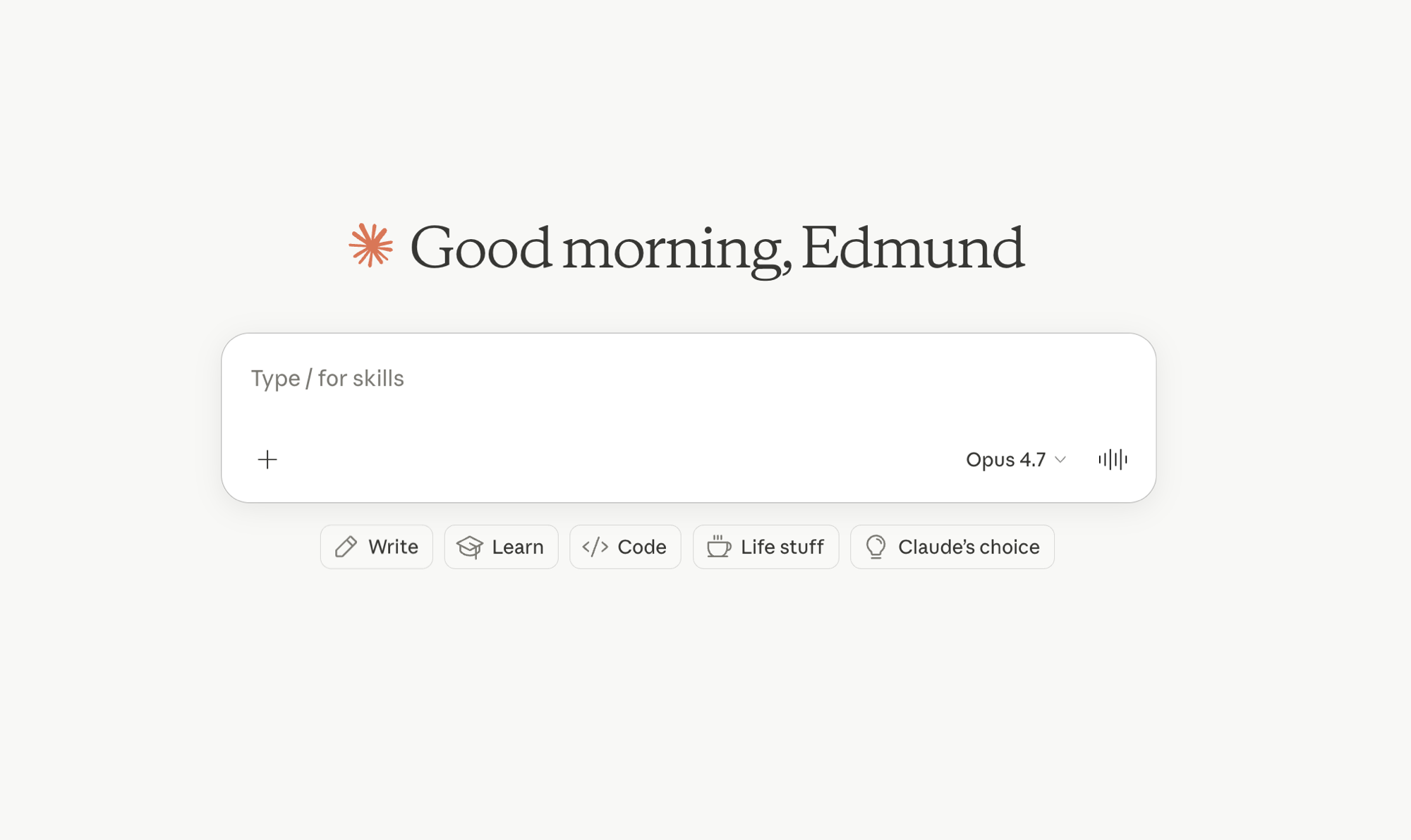
Don’t start with “what can you do?” Start with something you actually want to know. The more specific the question, the more useful the answer.
Ask Claude something that’s genuinely useful to you right now. Use a question with a clear place, timeframe, and proof expectation. Here’s an example: a question about dressing for the weather in Nairobi this week.
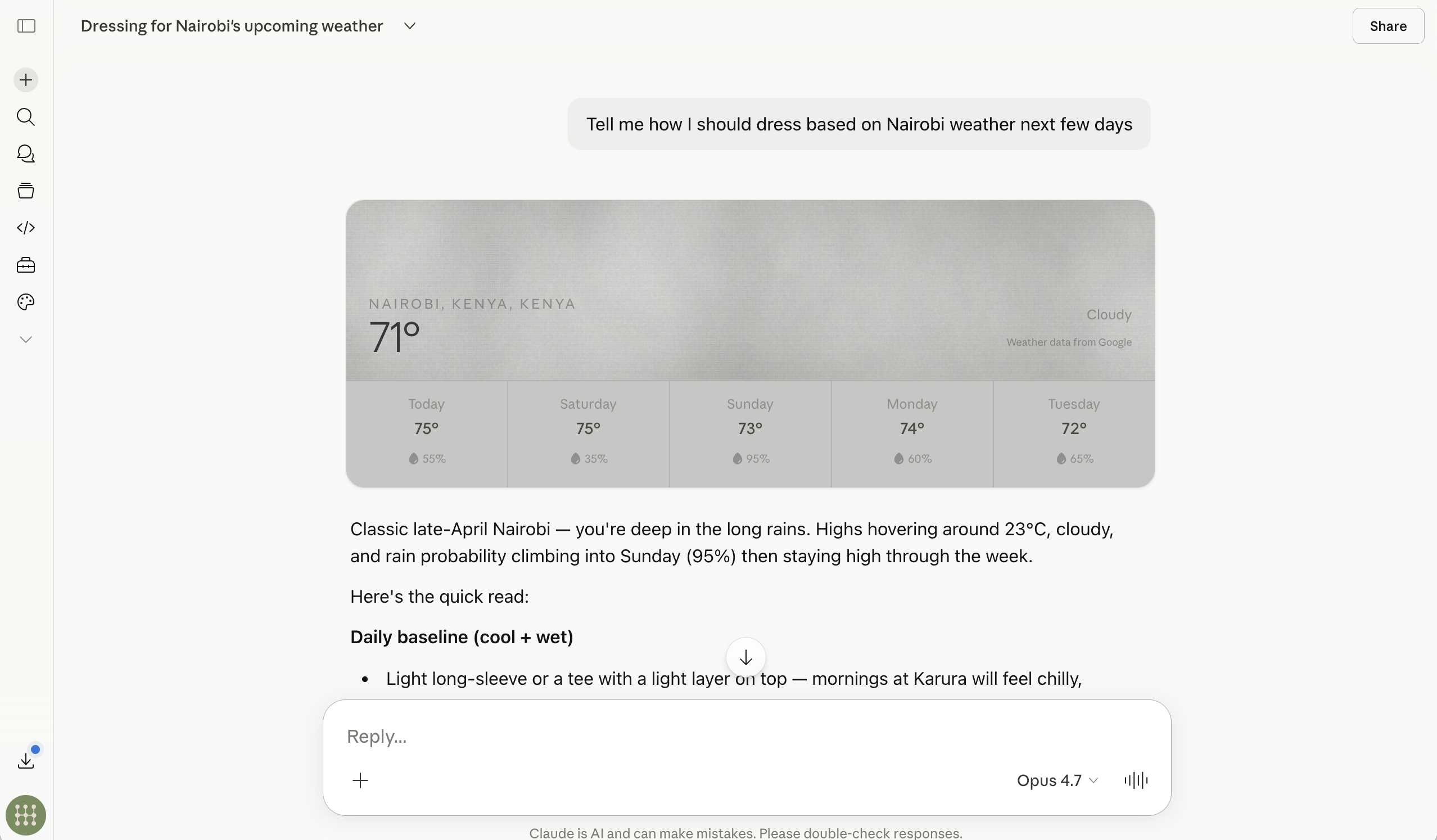
Notice the useful shape: Claude used a specific location and timeframe, gave a structured answer, and cited the source it used. That’s what a well-scoped question gets you.
If Claude cannot search the web or does not cite a source, the pass condition changes: it should say what source is missing instead of pretending the answer is current.
You have a saved example of the generic donor update from the previous prompt, plus a short list of the brand choices Claude invented.
Before moving on, mark three things in the output:
Take a screenshot or save the response text. You will compare it to the DESIGN.md-driven output later.
If you are working in Cowork, use this follow-up:
Good start. Before we revise it, save this version as the baseline.

Please take a screenshot of the current donor update and save it as `generic-donor-update-baseline.png`. Do not change the design yet.

Then give me a short note with:
1. what you saved
2. three ways the presentation design feels generic, off-brand, or hard to use
3. what brand evidence we should gather before improving it
The point is not to criticize Claude. The point is to make the missing context visible.
Funders and grant managers miss deadlines because checking is manual and irregular. You remember to look when you remember. By the time you check, the window is two days out, or already closed.
A Monday morning scheduled task fixes this. One setup, and every week starts with the list already in your inbox.
Copy this into a new scheduled task:
Use Chrome for source gathering. Use Gmail at https://mail.google.com for the final draft. Do not use Superhuman, Apple Mail, Outlook, or any other mail client.

Open my bookmarked grant databases in Chrome. For each one, look for funding opportunities closing in the next 14 days.

If a bookmarked database is not accessible, note `source not accessible` for that source and continue. Do not invent opportunities from memory.

List each opportunity: funder name, programme name, source link, deadline date, and a one-line description of eligibility.

Sort by deadline, closest first.

Create a Gmail draft addressed to me. The subject line must be `Grant deadlines closing soon - ` followed by today's date in YYYY-MM-DD format. For example, if today is April 25 2026, the subject is `Grant deadlines closing soon - 2026-04-25`. Substitute the actual date. Do not send the literal words `today's date`.

Before you finish, verify the message exists in Gmail Drafts. Do not send it unless I explicitly approve after reviewing the draft. If Gmail blocks draft creation, return the full list in chat, label it `Blocked Gmail draft`, and tell me exactly what blocked the draft.Every Monday morning, a draft sorted by urgency. The closest deadline is at the top. You decide in five minutes what is worth pursuing this week, instead of finding out on Thursday that something closed on Tuesday.
Swap in native connectors once they are available for your grant sources. Chrome works universally, connectors are faster where they exist.
After the first run, check Gmail Drafts for the subject Grant deadlines closing soon - [date].
Open the draft and confirm every listed opportunity has a source link and deadline. If the draft is missing, use the chat fallback only as a repair note. Do not schedule a send-first version until the draft path works.
Claude can sound confident even when it is wrong. That is not a reason to avoid using it. It is a reason to build a verification habit.
The practical distinction is simple: trust the shape of work you can inspect, verify the facts you would be embarrassed to get wrong.
#5 · Hallucination and Trust
Systematic trust-building is called evals: define what Claude needs to do reliably, run test cases, and measure accuracy before depending on it.
Do not ask, “Can I trust Claude?” Ask, “Which parts of this answer need proof before I use them?”
Claude is often useful for structure, synthesis, drafts, critique, and reasoning you can follow. It is riskier when it gives specific facts that are easy to invent but hard to notice: citations, statistics, names, dates, titles, prices, policies, legal claims, or financial claims.
That means your job changes by task:
While Claude is working, watch the visible activity trace. You are not trying to read hidden chain of thought. You are checking whether Claude actually used the tools the answer depends on.
If the answer needs current facts, you should see search, browser, connector, file, or command activity. If the answer needs repo proof, you should see file reads, diffs, commands, or tests. If the answer needs a Gmail draft, browser action, or saved artifact, you should see that surface open or the artifact appear.
This matters because a polished answer can arrive before any real evidence was gathered. If Claude gives a factual answer but you never saw it call a source, treat the output as an unverified draft. The next prompt is simple: “Show me which sources or tools you used, and mark any claim you answered from memory.”
Use one prompt and run it in three fresh chats: Haiku, Sonnet, and Opus. If your plan does not include all three, use the models you have and keep the prompt unchanged.
Use a real topic if you have one from the workshop. If the room is quiet, use the demo case below.
Demo case:
Should our nonprofit use AI-generated donor segments for a Q3 fundraising campaign?

Context:
- We have 8,000 newsletter subscribers and 1,200 donors.
- We want to increase repeat donations without making supporters feel surveilled.
- The briefing is for the COO and fundraising lead.
- We need to understand upside, privacy risk, bias risk, and what facts must be checked before acting.
Paste this same prompt into each model:
I need to prepare a short internal briefing on this topic:

[Paste a real topic from my work, or use the donor-segmentation demo case above.]

Give me:
1. A 150-word briefing draft.
2. A trust checklist with two columns:
   - Safe to use after review
   - Must verify before sharing
3. For every item in "Must verify," tell me exactly how I should verify it.

Do not invent citations. If you are unsure, mark the claim as "needs source."
Before you act on any answer, highlight every sentence that contains a number, date, named person, organization, title, citation, policy, legal claim, or financial claim. Those are your verification targets.
Compare the three answers side by side:
Claude should separate useful drafting from factual proof. The briefing draft may be a good start even if several details need verification.
The lesson is not that Opus always wins. The lesson is that model choice changes depth, caution, and verification behavior. A calibrated answer does not pretend every sentence is equally safe. It tells you which parts are judgment, which parts are structure, and which parts need evidence from a reliable source.
If Claude gives confident facts without marking uncertainty, follow up:
Review your previous answer for unsupported claims. Make a table with:
- claim
- why it matters
- confidence level
- source needed
- whether I should remove it, soften it, or verify it before sharingTreat Claude like a fast colleague whose drafts are useful but whose facts still need review. The more consequential the output, the more explicit the verification step should be.
For low-stakes drafts, a quick read may be enough. For public, legal, financial, medical, grant, hiring, or board-facing work, require sources, check the facts yourself, and keep a short record of what you verified.
That is the bridge to evals: when you need Claude to do a task reliably every time, do not rely on vibes. Define the expected behavior, run test cases, and measure whether the system is accurate enough for the job.
Long browser workflows fail for boring reasons: the laptop sleeps, Chrome suspends, or the desktop app is closed. Scheduled tasks only help if the machine is awake when the schedule fires.
In Claude Desktop, open Settings and look for a Keep Awake or equivalent power setting. Turn it on before running overnight or early-morning scheduled tasks.
Then check your operating system power settings:
This is not a productivity trick. It is a reliability check. If the machine sleeps, Claude cannot drive the browser.
Do not start by asking “Which Claude product should I use?” Start by asking where the work lives.
This is teaching a routing habit. A surface is not a feature list. It is the place where the task has the right inputs, permissions, and proof.
Draft, research, inspect a page, edit files, or change a repo.
Clean chat, local files, logged-in browser pages, or source code.
Source links, screenshots, exports, Gmail drafts, tests, or a diff.
The right surface is the one that already has the input, permission, and proof path the task needs. If you choose the wrong surface, Claude either guesses, asks you to copy too much context, or cannot show that the result is real.
Use it for drafting, critique, synthesis, planning, and questions where the important context fits in the conversation.
Needs: prompt, pasted context, files you choose to upload.Use it when the work needs local files, a persistent project workspace, or visible step-by-step steering.
Needs: folder, files, project context, connected apps.Use it when the task depends on pages behind login, browser state, Gmail, Calendar, CRMs, or web apps.
Needs: tab access, account session, page-specific evidence.Use it when the task needs to inspect source files, edit code, run tests, commit, reason across a repo, or make the work multiplayer with GitHub.
Needs: working tree, commands, tests, diffs, GitHub.The work is mostly drafting and judgment. Paste the facts and ask for structure.
The work needs files, artifacts, and a workspace you can keep steering.
The work depends on logged-in web apps and visible browser evidence.
The work depends on source files, local checks, diffs, and version control.
Ask everyone to answer with the surface and the reason:
For [target artifact], I would start in [Claude Chat / Claude Cowork / Claude in Chrome / Claude Code] because it needs [clean conversation / files / browser state / repo access].Then open the agentic ladder. The ladder answers a different question: not “where do I start?” but “how much agency am I giving the tool?”
In Block 3, Claude made a branded deck from your rules and content. Block 4 uses the same briefing discipline for a daily operating artifact: an email that prepares you for tomorrow’s meetings.
The agent is not magic. It follows a visible sequence:
The deck showed Claude making a polished artifact from a reusable spec. The daily brief shows Claude doing operating work from a reusable spec.
The prompt has to say:
Before we schedule this in Block 5, we run it once by hand. The proof is a Gmail draft with:
YYYY-MM-DD - Meeting brief subject formatOnce that works, the same prompt can become a scheduled task.
Use the live path if Calendar, Gmail, LinkedIn, and Slack are already open and signed in, or if the Slack blocker is known before the prompt starts.
Use the demo-safe path if any account, permission, browser tab, or network step is not ready within two minutes.
The learning goal is the same either way: source order, fallback behavior, draft-first proof, and a reusable scheduled-task prompt.
Use your real browser sessions.
Scope the run tightly:
If the live path stalls, do not keep debugging in front of the room. Paste this demo-safe prompt instead and say, “Same workflow, public-safe inputs.”
The full fallback context is also saved at /demo-kit/learn-claude/sample-meeting-brief-context.md.
Use only the demo context below. Do not browse. Do not open Calendar, LinkedIn, Gmail, or Slack for source gathering. Do not invent biography, funding history, private emails, or Slack context.

Demo calendar:
- 2026-05-01 10:00 AM, Partnership intro with Greenfield Community Clinic
- External attendee: Maya Patel, Executive Director, Greenfield Community Clinic
- Internal attendee: me
- Meeting goal: explore whether their clinic wants a lightweight donor reporting template

Demo recent context:
- Maya asked for examples of reports that combine program outcomes with fundraising asks.
- We want to show one practical next step, not a full proposal.
- Slack blocked: demo context has no live Slack access.

Demo source rule:
Use only the sample context above. Mark anything else as `not available in demo context`.

Create a meeting brief draft with subject `2026-05-01 - Meeting brief`.

The draft must include:
- meeting title and time
- who I am meeting
- what they likely need
- one useful question to ask
- unknowns to verify live
- source notes for the meeting that say the brief used demo-safe context only

If Gmail is open and ready, create a Gmail draft addressed to me and verify it appears in Gmail Drafts. If Gmail is not ready within one minute, do not debug Gmail. Return the complete plain-text draft in this chat and label the proof `Plain-text fallback draft`.The fallback still needs a visible artifact. Accept either:
2026-05-01 - Meeting briefIf live access fails, say this and move on:
Browser access is the variable, not the workflow. I am switching to the demo-safe path so we can still see the prompt shape, proof gate, and scheduling handoff.
You know which path you are running before the prompt starts, and the fallback produces a reviewable draft even if account access stalls.
This prompt is the brief. It tells Claude what to read, what to ignore, where to search, how much research to do, what shape the output should take, and how to prove the draft exists.
Read it once before running it. The structure is what makes it reusable in Block 5.
Run this in Claude Desktop with Claude in Chrome active:
Use Chrome for browser work. Use Gmail at https://mail.google.com for all email searching and for creating the final draft. If any email link or browser state opens somewhere else, open Gmail instead.

Meeting scope for this run: brief the first 3 non-declined meetings by start time. If the target day has fewer than 3 non-declined meetings, brief all of them. If I explicitly edited this sentence before sending the prompt, use the edited scope.

Before doing browser work, write one line in chat with the target date rule, meeting scope, source order, and draft-first proof rule you are about to follow.

Look at my Google Calendar for tomorrow. If tomorrow is a Saturday or Sunday, use the next Monday instead. Exclude declined meetings only. Include accepted, tentative, maybe, and no-response meetings. Apply the meeting scope before researching people. Do not research meetings outside the scope. If there are no in-scope non-declined meetings for that day, create a Gmail draft addressed to me with subject `[the target date in YYYY-MM-DD format] - Meeting brief` and body `No non-declined meetings scheduled.` Then verify the draft appears in Gmail Drafts and stop.

For each in-scope non-declined meeting, identify the attendees. Separate external attendees (different email domain from mine) from internal ones.

If a meeting has at least one external attendee, open each external attendee's LinkedIn profile in Chrome. Read their current role, organization, and one line on what they are focused on. Prioritize external attendees and cap at 3 people per meeting. If a LinkedIn profile is not publicly accessible, is private, or cannot be found, write `LinkedIn not available` next to that person's name and move on. Do not guess, do not fabricate a role or bio.

If a meeting has only internal attendees, for example a standup or team sync, skip the LinkedIn lookups entirely. Instead write one short line describing what the meeting is about based on the calendar title, description, and any attached agenda.

Open Slack in Chrome and search it for recent threads with each in-scope meeting's attendees. Pull relevant context into the brief. If Slack cannot be reached or you are not logged in, write `Slack blocked: [reason]` in the source notes for each affected meeting and continue. Always search Gmail at https://mail.google.com for recent threads with each in-scope meeting's attendees as well.

For each in-scope meeting write a short brief with these fields: meeting title and time, who I am meeting, names and orgs, what they work on, one thing I should know or ask, and source notes. Source notes must list Calendar status, LinkedIn status, Gmail context found or not found, Slack context found, not found, or blocked, and any unknowns. Do not include private email excerpts in source notes.

Create a Gmail draft addressed to me. The subject line must be the target date in YYYY-MM-DD format followed by ` - Meeting brief`. For example, if the target date is April 25 2026, the subject is `2026-04-25 - Meeting brief`. Substitute the actual date, do not send the literal words `Tomorrow's date`.

Do not send the draft during the workshop unless I explicitly reply `send it`. Before you finish, verify the draft exists in Gmail Drafts. If I approve sending, send it from Gmail and then verify the message exists in Gmail Sent Mail. If Gmail blocks draft creation or sending, tell me exactly what is blocking the action and do not claim it worked.Claude is following a source order:
The email surface is explicit because browser agents use the state they can see. Keep Gmail open and make the prompt say Gmail so Claude uses the right draft surface.
You should see Claude produce one Gmail draft with:
[date] - Meeting brief formatLinkedIn not available where a profile cannot be readThe first line in chat should also prove Claude understood the scope before it starts clicking: target date, meeting scope, source order, and draft-first proof.
If Claude asks you to narrow the scope, that is not a failure. A good agent flags a long or risky brief before producing it.
Answer with a constraint, for example:
Use only the first 2 non-declined meetings tomorrow and continue.or:
Use the first 2 non-declined meetings, search Slack and Gmail for each, and continue.Only send after reviewing the draft. The safe live-demo path is draft-first. Sending is a human decision, not the proof that the workflow works.
Start with Sonnet unless you have a reason to move.
Pick the model first, then open the answer.
Best fit: Haiku.
The work is repetitive and easy to check. You can scan the output, spot obvious mistakes, and rerun a small batch if needed. Speed matters more than deep judgment.
Best fit: Sonnet.
This is the normal default: it needs synthesis, structure, and good writing, but the cost of a first draft being imperfect is manageable because you will review it before sending.
Best fit: Opus.
The task is ambiguous, high-leverage, and expensive to get wrong. You want deeper planning, sharper assumptions, and better questions before you commit the team.
If you cannot explain why a task is easy to inspect or expensive to get wrong, use Sonnet.
Claude models trade off speed, cost, and judgment. The exact labels in the selector change over time, so teach the pattern first: Haiku is the fast tier, Sonnet is the best balance, and Opus is the deepest planning tier.
Memory hook: these are writing words. Haiku is short and fast. Sonnet is structured and balanced. Opus is the big work when the task rewards deeper judgment.
Use it for sorting, summarizing, labeling, and first-pass cleanup. The current fast model is Claude Haiku 4.5.
Use it as your default for most workshop tasks and daily work. The current balanced model is Claude Sonnet 4.6.
Use it when planning quality matters more than speed or usage. The current deep model is Claude Opus 4.7.
The beginner rule is simple: start with Sonnet. If Sonnet is not available, use the best balanced model your plan shows. Reach for Opus when a weak plan would waste more time than the extra usage. Use Haiku when the task is repetitive, easy to inspect, and speed matters. If your selector shows newer labels than these, keep the tier pattern and use the newest model in that tier.
Run the same prompt three times in fresh chats, once per model available in your Claude plan. Do not tune the prompt between runs. The point is to feel the model difference, not to make the prompt perfect.
I run a small nonprofit with a $500,000 annual budget. We have three possible priorities for the next quarter:

1. Write two grant proposals that could bring in $150,000, but each has a low chance of success.
2. Improve our donor reporting system, which would save staff about 4 hours per week.
3. Run a small pilot with 40 participants, which would create stronger evidence for future fundraising.

We have one senior operator, one program lead, and one part-time analyst. We cannot do all three well.

Recommend one priority for the next quarter. Give me:
- your recommendation
- the strongest argument against it
- what evidence would change your mind
- the first three actions for Monday morning

Keep it under 300 words.Haiku should be fastest. It often gives a decent summary, but may flatten tradeoffs or miss second-order consequences.
Sonnet should usually give the cleanest default answer: structured, practical, and good enough to act on.
Opus should spend more effort on ambiguity. It may surface better caveats, sharper assumptions, or a more nuanced decision rule. It is not automatically “better” for every task; it is better when the task rewards deeper judgment.
If one of your model runs fails, or if you are reading this later without access to all three models, open these examples and compare the shape of the answers.
Recommendation: Improve your donor reporting system.
This is the highest-leverage use of your constrained team capacity. Four hours weekly recovered is about 200 hours annually, equivalent to adding 0.1 FTE. For a three-person org, that is meaningful breathing room to pursue other opportunities without burnout.
Strongest argument against it: The grant proposals offer higher upside and might feel more urgent. If you are cash-constrained, chasing funding feels more pressing than internal efficiency.
Evidence that would change my mind: you are losing donors due to poor reporting, the senior operator is close to leaving, committed grant funding is already pending, or cash runway is under three months.
Monday actions: audit the reporting problem, scope one quick win, and set a decision gate so you can pivot if the audit shows the problem is smaller than expected.
Recommendation: Write the grant proposals.
With a $500K budget, a $150K infusion represents 30% of annual revenue. That is existential stakes, not marginal upside. Capacity constraints make this the right forcing function: the senior operator owns one proposal, the program lead owns the other, and the analyst handles research and formatting support.
Strongest argument against it: low-probability bets with high staff cost may be the worst use of constrained capacity. If both proposals fail, you have spent a quarter with nothing to show, and the reporting problem is still draining time.
Evidence that would change my mind: the grants require stronger outcome data, reporting problems are causing donor attrition, or the senior operator is already too overloaded for proposal quality to be credible.
Monday actions: pull the RFPs, block calendar time through submission, and draft a one-page logic model tying current outcomes to funder priorities.
Recommendation: Run the pilot.
The pilot is the only option that creates a durable asset. Grants without strong evidence are lottery tickets, and the reporting system is real efficiency but not a path to growth. A well-run 40-person pilot generates evidence that turns future grant proposals into credible asks.
Strongest argument against it: cash flow. If runway is under six months, a pilot that pays off in 12-18 months is a luxury. Grants may be the only option that can put money in the bank this quarter.
Evidence that would change my mind: runway under six months, a high-fit grant or warm funder relationship, reporting errors that are actively damaging trust, or existing pilot-adjacent data.
Monday actions: have the program lead draft a one-page pilot design, have the senior operator confirm runway and funder champions, and have the analyst scope a lightweight measurement plan.
The point is not that Opus is always right. The point is that the models noticed different things. Haiku optimized for capacity. Sonnet optimized for near-term revenue. Opus optimized for sequencing and durable evidence.
After you read the three answers, paste the best one into Sonnet and ask:
Critique this answer as an operator. What did it assume, what did it miss, and what would you ask me before acting on it?That second prompt is the real habit. Model choice matters, but review discipline matters more.
Relationship maintenance with funders suffers when inboxes get busy. A thread you meant to reply to on Wednesday drifts to Friday, then to the following week. By the time you remember, the reply is awkward to write.
A Monday sweep surfaces what needs attention before the week starts, so you can answer the important one before anything else demands your focus.
Copy this into a new scheduled task:
Use Chrome for browser work. Use Gmail at https://mail.google.com for all email searching and for creating the final draft. If any email link or browser state opens somewhere else, open Gmail instead.

Open my Gmail in Chrome. Search for emails from my key funders received in the last 7 days that I have not replied to.

Then open Slack in Chrome and check my most active Slack channels for threads involving those funders. If Slack cannot be reached or I am not logged in, note `Slack blocked: [reason]` once at the top of the draft and continue with Gmail.

List: funder name, source surface, what they sent or said, how many days since I last replied, and the Gmail thread or Slack channel where you found it.

Flag the one thread most worth a response today.

Create a Gmail draft addressed to me. The subject line must be `Funder follow-ups - ` followed by today's date in YYYY-MM-DD format. For example, if today is April 25 2026, the subject is `Funder follow-ups - 2026-04-25`. Substitute the actual date. Do not send the literal words `today's date`.

Before you finish, verify the message exists in Gmail Drafts. Do not send it unless I explicitly approve after reviewing the draft. If Gmail blocks draft creation, return the full summary in chat, label it `Blocked Gmail draft`, and tell me exactly what blocked the draft.The prompt leaves “key funders” implicit. Claude will surface whoever is emailing you most, which is usually a reasonable proxy. If you want tighter control, add a line listing the funders explicitly, by name or email domain. For example:
Key funders include: Skoll Foundation, MacArthur, Mulago, @openphilanthropy.org addresses, @hewlett.org addresses.Tight lists miss genuine new funders who are not on the list yet. Implicit lists drift toward whoever is loudest. Pick the one that matches how you work.
Every Monday at 8am. Paired with the grant deadline scan at 7:30am, your Monday morning Drafts folder starts with a clear picture: what is closing, who is waiting on you, and the one thing to do first.
After the first run, check Gmail Drafts for the subject Funder follow-ups - [date].
Open the draft and confirm the flagged thread has a source surface and a next action. If the draft is missing, treat the chat output as a repair note and keep the task draft-first until Gmail verifies cleanly.
Do not leave with “use Claude more” as the plan. Pick one real task you will run after the session.
By [day and time], I will use [prompt or workflow from today] on [real task], and I will trust the output only after [proof step].Examples:
By Thursday at 3pm, I will use the DESIGN.md extraction prompt on our partner site, and I will trust the output only after I compare the colors and fonts against the live page.By Friday at 10am, I will use the deck review ritual on next week's board update, and I will trust the output only after I check every slide has one idea and one ask.By Monday at 9am, I will use the weekend research watch on one real question, and I will trust the output only after I confirm every claim has a source link.The next rep is ready when it has:
You can paste the sentence into your calendar or task manager without rewriting it.
Pick one slide to improve. Not the whole deck.
Choose the slide with the biggest problem:
Revise slide [number]: [slide title].

Problem:
[Name the specific problem.]

Fix:
[Say exactly what should change.]

Keep:
[Name anything from the current slide that should stay.]

Do not change the other slides.Revise slide 3: Our approach.
Problem:
The headline is too generic and could describe any organization.
Fix:
Rewrite it as a specific claim about how we deliver results.
Keep:
The three-part structure and the visual direction.
Do not change the other slides.Revise slide 5: What we are asking for.
Problem:
The ask is polite but not concrete enough.
Fix:
Make the next step explicit and easy to say yes to.
Keep:
The warm tone and the contact line.
Do not change the other slides.“Make it better” gives Claude no diagnosis. A named slide, named problem, and named fix gives it a target.
Check:
DESIGN.mdIf Claude changed too much, pull it back:
You changed more than the requested slide.

Restore the other slides to the prior version.
Keep only the revision to slide [number].
Then show me the full 5-slide draft again.
If the revision is still weak, do one more targeted pass:
Slide [number] is still not specific enough.

Rewrite only the title and main message.
Make the title a concrete claim, not a category label.
Keep the bullets and visual direction unchanged.
Once the revised slide is better, stop editing. The goal is a usable first deck, not a perfect one.
Use the HTML preview if:
.pptx export is slow.pptx export is blockedRender this reviewed deck as a standalone HTML file called branded-deck.html.
Requirements:
- one clearly labelled section per slide
- full visual system from DESIGN.md
- CSS custom property tokens where useful
- readable slide-like sections
- dark or light background based on what best fits DESIGN.md
- no frameworks
- plain HTML and inline CSS only
- no external build step
The file should open directly in a browser.Ask:
Save that as branded-deck.html and give me the local file path or download link.This is a proof artifact. It is useful for screenshots, comments, Notion embeds, and quick review. Use .pptx when you need an editable presentation file.
Open branded-deck.html in a browser and take one screenshot. If PowerPoint export failed, label this as HTML fallback proof and keep the .pptx task as a follow-up instead of claiming export is complete.
DESIGN.md is useful to Claude, but it is still abstract for humans. The preview page makes the brand rules visible.
Run this after DESIGN.md passes the gateway check.
Render DESIGN.md as a standalone file called design-system.html.

The page should show:
- Color swatches with labels and hex values
- Typography examples for headings, subheads, body, and captions
- Buttons, cards, links, and section examples
- A short report-style section using the brand

Use plain HTML and inline CSS only.
No React, no Tailwind, no external build step.
The file must open directly in a browser.DESIGN.md is portable context. Once it exists, the prompt is no longer trapped inside one Claude thread. You can run a lightweight LLM council by giving the same spec to another model and comparing the answers.
For the live demo, paste DESIGN.md and the same render prompt into ChatGPT as a second reviewer:
I am using you as a second reviewer in an LLM council.

Here is the same DESIGN.md and HTML preview prompt I gave Claude. Do not invent brand details outside DESIGN.md.

Please review the planned design-system.html and tell me:
1. what brand details the preview must preserve
2. what generic design moves to avoid
3. one concrete improvement to the preview structure

DESIGN.md:
[paste DESIGN.md]

Preview prompt:
[paste the render prompt]
The point is not to make two models compete for style. The point is to give both models the same reusable context, then use the second answer as a critique before you trust the artifact.
Ask:
Save that as design-system.html and give me the local file path or download link.The preview is the moment DESIGN.md stops being a text file and becomes a reusable artifact.
If the page looks generic, the problem is usually upstream: DESIGN.md did not capture enough real brand information.
Pick one scheduled-task candidate you would actually keep if it worked. A vague automation idea does not count yet.
I want a scheduled task that [does what task] every [schedule] using [inputs].

If [input] is missing or stale, Claude should [skip it, label the blocker, or ask me to repair it].

I will know the first run worked when [proof].
Examples:
I want a scheduled task that drafts my meeting brief every weekday at 8am using Calendar, Gmail, LinkedIn, and Slack. If Slack cannot be reached, Claude should write Slack blocked with the reason and continue. I will know the first run worked when the draft appears in Gmail Drafts.I want a scheduled task that scans grant deadlines every Monday at 7:30am using my bookmarked grant databases. If one source is inaccessible, Claude should label source not accessible and continue. I will know the first run worked when a Gmail draft lists funder, programme, source link, deadline, and eligibility.I want a scheduled task that finds unanswered funder threads every Monday at 8am using Gmail and Slack. If Slack cannot be reached, Claude should use Gmail only and label the Slack blocker. I will know the first run worked when a Gmail draft names one thread worth answering today with its source surface.The candidate is ready to try when it has:
You can say the scheduled-task sentence out loud in one breath. If you cannot, keep it manual for now and sharpen the task before scheduling it.
Open Claude Desktop and go to Claude Cowork. Look for Scheduled tasks. If your UI still says Routines, use that tab. The workshop idea is the same: save a prompt and a schedule together.
For the live run, capture a screenshot after creating the Morning meeting brief draft scheduled task. That screenshot is the proof that Block 5 worked and belongs in the post-session notes.
A scheduled task is two things saved together:
When the clock hits the scheduled time, Claude runs the prompt in Claude Cowork using the same capabilities as a manual Cowork run. No code, no external automation tool, no cron syntax.
Scheduled tasks can use the same Claude Cowork capabilities as a regular session. This matters.
A Block 4 style brief built through Chrome takes minutes because Claude is opening tabs. The same prompt with native connectors for Gmail, Google Calendar, and Slack can run faster. For a daily scheduled task running at 8am, faster means the brief is ready before you sit down, not while you are drinking coffee.
Set up connectors once. Every scheduled task that touches those services inherits the speed.
A one-off prompt answers a question once. A scheduled task answers the same question every day without you remembering to ask. The prompt does not change. Only the clock does. That asymmetry is the whole point.
Before scheduling anything, prove what happened:
[date] - Meeting brief, with one section per in-scope non-declined meeting and source notes.If proof is missing, stop here. Do not schedule the live Gmail version yet.
Create a note called Morning meeting brief prompt and include:
Block 5 should schedule the saved prompt only after the draft proof passes. Keep the first scheduled run draft-first. Change it to send automatically only after you have seen a scheduled draft arrive cleanly.
Use the exact prompt that worked in Block 4. Do not rewrite it during this step.
The saved prompt should still include:
If the Block 4 draft never appeared, schedule it only after you have run the prompt once and found the proof draft in Gmail.
Say this out loud before saving:
I am scheduling the same prompt that already produced a Gmail draft. The proof today is the saved task screenshot. The proof after the first scheduled run is a Gmail Drafts screenshot with the expected subject.In Claude Cowork, ask Claude to create the schedule for you:
Create a scheduled task in this Cowork project.

Name: Morning meeting brief draft
Schedule: Monday through Friday at 8:00 AM in my current timezone

Use this exact prompt as the scheduled task body:
[paste the verified Block 4 meeting brief prompt]

Keep the task draft-first. It should create a Gmail draft, verify it appears in Gmail Drafts, and never send unless I explicitly change the task later.

After you create it, take me to Scheduled so I can inspect the saved task details.After Cowork creates the task, open Scheduled. If your UI says Scheduled tasks or Routines, use that tab. Inspect the saved task before moving on:
Morning meeting brief draft.At 8:00 AM on the next weekday, Claude runs the same meeting brief prompt automatically.
The success condition is not just that Claude ran. The success condition is a Gmail draft with the expected subject in Drafts. Once that works, you can decide whether to change the prompt to send automatically.
For the live workshop, capture the Scheduled task details now. That is the Block 5 artifact. Do not wait for tomorrow in front of the room.
Use the same prompt at first. Once Gmail, Google Calendar, and Slack connectors are confirmed for your account, you can remove some browser navigation language and keep the same meeting scope and verification rule.
Keep Gmail explicit for drafts and sending until you have tested the write path.
Do not schedule a prompt just because it sounds useful. Schedule it only when the first run can leave proof you can inspect.
Fill this in before creating a task:
This is worth scheduling because it repeats every [cadence], uses [inputs Claude can reach at run time], and produces [artifact I will actually read].

If [input] is missing or stale, Claude should [skip, label the blocker, or ask me to repair it].

The first-run proof is [screenshot, Gmail Drafts subject, source-linked list, or saved file].The task is ready to schedule when all four statements are true:
If the missing-input rule is vague, keep the task manual. A scheduled task should fail clearly when context is missing, not produce a confident empty answer.
Four working artifacts:
Machine-readable brand rules and a browser preview extracted from your own website.
A five-slide deck generated from a short brief and your DESIGN.md.
An agent that reads your calendar and pulls live context before the call.
A reusable weekday run that creates the brief without rebuilding the prompt.
Nothing here is a toy example. You leave with artifacts you could use at your desk on the next workday.
Six blocks, paced by artifact gates. Some are longer build blocks, some are short handoffs. The rail on this page tracks exactly where we are and how much time is left.
Frame the shift, surfaces, and working habits.
Extract DESIGN.md from your site in Cowork.
Build a branded five-slide deck from a one-liner.
Use Chrome and Gmail to prepare a meeting brief.
Schedule the verified brief for weekday reuse.
Collect feedback and decide what comes next.
Two windows, side by side:
Claude Cowork is a project workspace inside the Claude desktop app. Same model as claude.ai, but with a persistent context window per project, first-class file support, and the Connectors menu (including Claude in Chrome). Today we stay in Claude Cowork because every action is visible and steerable in real time.
A spec file is a plain text brief that gives Claude durable context for a project. Instead of retyping your brand rules, working preferences, constraints, and current plan in every chat, you keep them in files Claude can read at the start of the work.
The habit is simple: write the context once, then keep it current.
#4 · Spec Files and Planning
DESIGN.md
What your org looks like: colors, typography, tone, and component rules.
## Colorsprimary: #2D5A8Eaccent: #F4A261## VoiceWarm, direct, no jargon.CLAUDE.md
How Claude should behave: priorities, constraints, formats, and avoid lists.
Always use UK English.Never add emoji.Respond as a strategist.Check numbers before citing.SKILL.md
How to repeat one workflow: triggers, steps, examples, and guardrails.
---name: deck-review---Use this when reviewing slides.Check brand fit, one idea per slide,and export readiness.PLAN.md
What you are building now: goals, constraints, decisions, and next steps.
## GoalBrand a deck for Agency Fund.## ConstraintsMax 10 slides, no stock photos.## Next stepExport to PDF.One hour of writing, infinite sessions. The brief you write once can guide every future prompt in the project.
Use these as a starting set:
You do not need all four for every task. The useful distinction is stable context versus live context. DESIGN.md, CLAUDE.md, and SKILL.md should change slowly. PLAN.md should change whenever the work changes.
Long conversations drift. A spec file gives you a clean reset point. When a chat gets crowded, you can start fresh and point Claude back to the same source of truth.
This is especially useful in Claude Code, where project instructions and skills can live beside the files Claude is editing. It is also useful in normal Claude chats: paste the relevant spec at the top of a new conversation, attach it as a file, or keep it in a Claude Project.
In a new Sonnet chat, write a tiny planning file for one real workshop task. Pick something small, such as improving a donor update deck, cleaning a CRM export, drafting a grant follow-up email, or preparing your brand materials.
If you need a demo task, use this:
Task: Prepare a one-page donor update for board members.

Context:
- Organization: small climate resilience nonprofit
- Audience: board members who want concise progress and risks
- Files or links I may provide: last quarter's program notes, fundraising dashboard, three participant quotes
- Constraints: no invented metrics, no stock language, under 700 words
- What "done" means: a clear update with three wins, two risks, and one ask for the board
Then paste this prompt:
Help me write a PLAN.md for a small AI-assisted work session.

Task:
[Paste my real task, or use the donor-update demo task above.]

Context:
- Organization:
- Audience or user:
- Files or links I may provide:
- Constraints:
- What "done" means:

Create a concise PLAN.md with these sections:
- Goal
- Inputs
- Constraints
- Decisions so far
- Open questions
- Step-by-step plan
- Definition of done

Keep it practical. Ask up to three clarifying questions only if the plan would be risky without them.
When Claude returns the draft, do not treat it as finished. Edit it until it sounds like something you would actually hand to a colleague.
A good PLAN.md should reduce the number of instructions you need in the next prompt. After you have the plan, try this follow-up in the same chat:
Using the PLAN.md above, give me the first action I should take and the exact prompt I should run next.Claude should stop guessing about the shape of the work. It should use your goal, constraints, and definition of done as the operating brief.
At the end of a work session, ask Claude to update the plan:
Update this PLAN.md based on what we decided. Keep completed work, open questions, and next steps clear enough that I can paste it into a fresh chat tomorrow.That update is the payoff. You are not just prompting better today. You are leaving tomorrow’s Claude a better starting point.
Claude Cowork launches separate subagents or parallel workstreams, then returns one synthesis from the parent.
Run this in Cowork:
We are in Claude Cowork.

Use separate subagents or parallel workstreams if available. If you need to show me the plan first, keep it brief, then launch the work.

Task: summarize what the world is paying attention to right now.

Shared brief:
- Use only public, visible headlines. Do not bypass paywalls.
- Pick five major newspapers from different regions. Suggested set: The New York Times, The Guardian, Le Monde, The Hindu, and The Japan Times.
- If one site blocks access, choose another major newspaper from a similar region.
- Return style: concise, with source names and links.

Launch five independent workers:

1. Worker A: The New York Times
   Summarize the top visible homepage headlines.

2. Worker B: The Guardian
   Summarize the top visible homepage headlines.

3. Worker C: Le Monde
   Summarize the top visible homepage headlines.

4. Worker D: The Hindu
   Summarize the top visible homepage headlines.

5. Worker E: The Japan Times
   Summarize the top visible homepage headlines.

Each worker should return:
- newspaper name
- 3-5 top headline themes
- one representative headline or link
- anything that looks region-specific

After all workers return, synthesize the results into:
- the 3 biggest global themes
- one theme that only appears in one region
- one sentence on what the parallel workers found faster than one serial scan would haveThe check passes when you can see:
If Cowork cannot start separate lanes, revise the prompt to say: “simulate five independent news researchers, keep their notes separated, then synthesize.” That is weaker than real subagents, but it still teaches the branching pattern.
Subagents are separate agents that the parent agent can send out to do bounded work. Each one gets its own context window, its own task, and its own return format. The parent stays responsible for the brief, the final decision, and the merge.
#3 · Subagents
Each subagent has its own fresh window, so the parent never fills up with raw research or intermediate work.
Run three tasks at once, not three in sequence. Wall-clock time shrinks when the tasks are independent.
One child failing does not kill the parent. The parent sees a failed return and decides what to do next.
The useful question is not “can I make three agents busy?” It is “does this task branch cleanly, and can I merge the answers without losing control?”
Subagents do not mean exactly the same thing on every Claude surface:
Use Research when the work is mostly web, docs, or connected knowledge. You steer the question; Claude handles the branching.
Best for: cited research, internal docs, broad scans.Use it when the work lives behind logged-in tabs. Chrome gives Cowork page access; it is not where you define agents.
Best for: dashboards, Gmail, Calendar, GitHub, web apps.Use Cowork when the task needs local files, connectors, browser state, and long-running work. Ask for parallel workstreams or subagents after the graph is clean.
Best for: reports, decks, files, browser workflows.Use Code when the lanes are repo work. Code can use built-in or custom subagents for search, review, tests, and implementation.
Best for: repos, logs, commands, diffs, tests.Today we are in Claude Cowork, so the check after this card should not stop at the graph. It should launch a small set of independent workstreams, then make the parent synthesize the returns.
Here is the shape for a dry-run improvement pass on this guide:
Audience, scope, files, and definition of done.
Find one concept jump that would confuse a new user.
Find one place the facilitator needs proof or fallback.
Find one card, label, or flow issue in the UI.
Compare evidence, choose the patch, run checks.
A graph like this is a DAG: arrows move forward, the lanes do not wait on each other, and everything rejoins at a synthesis point.
Think in boundaries:
If the work has no clean boundary, do not split it. Keep it in one thread and make the next decision first.
If the work has clean boundaries, parallel agents can help because each lane gets its own context window and failure mode.
Use this small demo case before launching anything:
We are improving /learn-claude/guide before a dry run.

The audience is operators who need practical Claude workflows.

The page already has:
- Block 1 intro cards
- guide dialogs
- slide cards
- tests and proof steps

Think architecturally before delegating.

First draw the dependency graph. Then propose at most three parallel work lanes.

For each lane, give:
- the boundary
- the input it needs
- the output it should return
- the proof that would make the output trustworthy
- what must wait until synthesis

Do not launch the workers yet.
The answer should not be “three people review everything.” That is not architecture. A better split would look like this:
Check whether the course introduces concepts in the order a new user needs them.
Returns: one confusing jump and one rewrite.Find where the facilitator needs a concrete test case, visible proof, or fallback path.
Returns: one demo risk and one safer run plan.Look for broken flow, card density, stale references, or checks that do not match the UI.
Returns: one product issue and the file to edit.The parent agent compares the evidence and decides which changes actually belong in the course.
Returns: a prioritized patch plan.Use parallel workers when the lanes can all start from the same brief and return comparable evidence.
Do not use them when:
The point is not to create more activity. The point is to shorten the critical path without losing control of synthesis.
Only after the split is clear, launch the workers in Cowork:
We are in Claude Cowork.

Use separate subagents or parallel workstreams if available.

Launch the three lanes above as independent workers.

Each worker should return:
- one finding
- the evidence it used
- the exact next action
- a confidence score from 1-5

Do not edit files yet.

After all three return, synthesize the results into a prioritized action list with no more than five items and name the file each item would affect.
If Cowork shows separate progress lanes, narrate that as the point: the parent keeps the brief while the workers spend their own context.
Go to claude.ai and create a free account using your email.
Claude offers individual tiers. Prices and included features can change, so use this as the planning baseline and confirm the current details on the billing page before the session.
For today’s core work you need at least a Pro account, or an organizational plan with Claude Desktop and connector access. Claude in Chrome is in beta for paid plans, but admin settings and rollout state can still affect access. If it is not available in your account, you can still complete the live learning path with the demo kit and the fallback prompts. Claude Code is useful for the optional coding and subagent examples, but it is not required for the brand, deck, meeting brief, or scheduled-task artifacts. Check claude.ai/settings/billing to confirm which plan you’re on.
Once logged in you’ll see Claude’s chat interface. During the session we’ll use:
The next prework steps cover installing each of these.
You can route four fixed tasks to the surface that can see the right inputs, use the right permission, and leave proof.
Pick the surface for each task.
The notes are already in front of you. No files, apps, browser state, or repo access required.
The source material lives on your computer, and the output is a reusable document.
The task depends on pages and accounts you are already signed into.
The work needs source files, command output, and a reviewable diff.
If the task needs a live website, logged-in account, or Gmail draft or send step, do not call it a plain chat task.
If the task needs source files, tests, or version control, do not start in a browser-only surface.
The real lesson: pick the surface that can see the input, act with the right permission, and leave evidence behind.
Run this only if Claude in Chrome is visible in your account.
Claude should return three specific, accurate bullets drawn from what’s actually on the page, not a generic description. Here’s an example of Claude reading Hacker News and pulling out the top stories:
The key signal: Claude names actual content from the page, not vague categories. If the bullets are generic (“this page contains news articles”), the extension may not have connected properly. Check that the Connectors toggle is on in your current project.
Once the summary lands, ask a follow-up question about something specific you spotted on the page. For example: “What is the third story about, and who wrote it?” or “Does this page have a contact email?”
Follow-up questions are where the real value shows. Claude holds the full page content in context and can answer detail questions without you having to scroll or search.
This is still a pass if you choose the fallback before the workshop starts.
Write:
Chrome access is missing. I will use the demo kit for live browser-dependent cards, then rerun the Chrome steps when the connector appears in my account.Keep the demo kit links open for Block 2 and Block 4. The facilitator should not debug account access once the room is moving.
Claude Code is optional for this workshop. Run this check if your plan includes Code or you expect to use the coding examples later. If your plan does not include Code, skip this card and continue with Claude Cowork.
“Which model are you?”
Claude should name a specific model, for example “I’m Claude Sonnet 4.6”, “I’m Claude Opus 4.7”, or “I’m running as Claude Haiku 4.5”. Any named Claude model such as Haiku, Sonnet, or Opus is a pass.
If Claude dodges the question or says something like “I’m an AI assistant made by Anthropic” without a model name, use the visible model selector or task header instead. The goal is only to confirm that Code opens and responds.
If you cannot open Claude Code because your plan does not include it, that is not a blocker for today’s required artifacts. Mark it optional and move on.
You’ve now seen both sides of Claude Desktop if your plan includes both. Claude Cowork is the main surface for today’s build. Claude Code is there when you want Claude working closer to files, terminals, and coding workflows later.
“What’s today’s date and what operating system am I running?”
Claude should answer immediately with today’s actual date and your OS version, for example “macOS Sequoia 15.3” or “Windows 11 Home 23H2”. It pulls this from your live system, not from training data.
If Claude returns a generic answer like “I don’t have access to your system information,” Cowork’s system access is not enabled. Check that you’re in the desktop app, not the browser tab, and that you opened a new task from the home screen rather than the chat interface.
A specific, accurate answer here means Cowork can see your machine. That’s everything Block 2 needs to get started.
If you see the scheduled task with the right schedule and draft-first prompt, the live workshop gate passes. It will fire at the next scheduled time while Claude Desktop is open and the computer is awake.
Write the proof check into your notes before leaving this step:
After the first scheduled run, I will open Gmail Drafts and look for [YYYY-MM-DD - Meeting brief]. If the draft is missing, I will keep the task draft-first and repair access before relying on it.The saved-task screenshot proves setup. The Gmail Drafts screenshot proves the workflow worked unattended.
The save step may not have completed. Create it again from the Scheduled tasks tab:
The task will not run automatically until the next scheduled time. If you want to confirm it works end to end now, look for a Run now option on the task (three-dot menu, or a play icon depending on the Claude Desktop version). That triggers the prompt immediately using the same capabilities it would use at 8am.
If Run now is not available in your version, you can still copy the prompt back into a regular session and run it there. The scheduled run will behave the same way.
You do not need to become technical to follow the workshop. You only need enough shared language to know what Claude can see, what it can do, and what proof it leaves behind.
When a term feels fuzzy, ask three questions:
The engine doing the reasoning. The exact labels change, but the useful pattern is stable: Haiku is fast, Sonnet is the best balance, and Opus is deeper and uses more capacity.
The instruction you give Claude. A good prompt names the job, inputs, constraints, output shape, and proof step.
The information Claude has available right now: your message, files, previous chat, browser page, or connected app data.
The amount of information Claude can hold in one conversation before older details become harder to use reliably.
The useful thing you leave with: DESIGN.md, an HTML deck draft, a Gmail draft, a scheduled task, or a screenshot.
The check before you trust the output. Examples: a real hex color, a working HTML file, a Gmail draft, or a test result.
The normal chat surface. Best when the important context fits in the conversation.
Use for: drafting, synthesis, critique, planning.The Claude Desktop workspace where Claude can use local files, connected apps, and visible step-by-step work.
Use for: brand files, decks, browser-guided tasks.The browser connection that lets Claude use pages you are signed into, such as Gmail, Calendar, LinkedIn, or a CRM.
Use for: live websites and private browser state.The coding surface for reading files, editing a repository, running commands, and showing a diff.
Use for: code, courseware, tests, commits.Claude doing a multi-step task with tools, not just answering one question. You still set the goal, boundaries, and proof.
A permissioned link to an app like Gmail, Calendar, Slack, or Google Drive. It gives Claude a cleaner way to read that source.
A prompt plus a schedule saved in Claude Desktop. It should only run after the prompt has worked manually at least once.
A focused helper assigned one lane of work. Use it when the lanes are independent and the results can be compared.
A confident-sounding claim that is not grounded in the available sources. Treat names, dates, numbers, and legal or financial claims as verification targets.
Plain text with light formatting. Files ending in .md are easy for humans and Claude to read.
Your machine-readable brand brief: colors, typography, voice, component rules, and examples to follow or avoid.
Your operating brief for the current task: goal, inputs, constraints, decisions, open questions, and definition of done.
A browser-viewable file. In this workshop, HTML is the fast proof that a design or deck visually works before export.
A spreadsheet-like data file. Claude can use it to make a chart, but the chart still needs a real-data proof check.
If you get lost, use this:
I think this term means [plain-English guess]. What input does it use, what action does it take, and what proof should I check?
Claude in Chrome is the slow version of this agent, and that is useful for the workshop. You can see each browser tab open, each search happen, and each decision land in the final brief.
Watch for this sequence:
Claude is working one tab at a time. That visible pace is the transparency. With native Gmail, Calendar, and Slack connectors, the same work can run much faster, but the browser version makes the sequence easy to audit.
Claude is also working purely from the prompt text. There is no hidden configuration file. Every rule it follows, from excluding declined meetings to capping external attendees, came from the prompt.
The prompt narrows decisions that would otherwise be implicit:
The cap at 3 people per meeting rule is especially important. Claude may self-limit anyway, but explicit rules survive model changes. Implicit behavior does not.
Use a targeted correction instead of starting over:
Pause. Use Gmail only for the draft. Close the Superhuman tab, open https://mail.google.com, and continue from the draft step. Do not send unless I explicitly approve.or:
Pause. Do not guess LinkedIn details. Mark any profile you cannot read as `LinkedIn not available`, then continue.The follow-up becomes part of what you learn for the next version of the prompt.
Set up one research automation before you leave, then read the brief on Monday.
The learning goal is scoping. A useful automation has a narrow question, source rules, and a proof step you can judge without trusting the model blindly.
Use a question you already care about. Keep it narrow enough for five sourced updates.
Examples:
Copy this into a new scheduled task:
Use Chrome for source gathering. Use only sources you can open and link.

Run a weekend research watch on this question:

[question]

Search for credible material published since Friday at 5pm in my local time.

Prefer primary sources, official pages, company blogs, regulator pages, standards bodies, research labs, and reputable news outlets. Do not use unsourced social posts unless they point to a primary source.

Write a Monday brief with:
- 3 to 5 sourced updates, each with a link
- why each update matters for my work
- what is fact versus interpretation
- one question I should investigate next

Keep the brief under 500 words. Do not make claims without links. If sources disagree, say so.

Return the brief in chat. If Gmail is available, create a Gmail draft addressed to me with subject `Weekend research watch - [topic]`. Do not send email.

Before you finish, verify each update has a working source link. If no credible updates appear, write `No credible update found` and list the searches you tried.Set it to run Monday at 8:00 AM.
If the topic moves fast, set a second run for Sunday evening and keep the same output format. Do not add more sources until the first brief is useful.
Open the brief and check:
You can decide in under five minutes whether to keep, revise, or delete the automation.
Ask everyone to drop one message in the Zoom chat before you move on. Give them 60 seconds.
The format:
[Name] / [Role] / [Org]
Biggest AI win, one sentence
Biggest AI loss, one sentence
Target artifact: brand rules, branded deck, or meeting brief
Proof it would need before you used it with a real colleague
Why this format: wins and losses together surface the real picture. The target artifact gives everyone a practical lens for the rest of the workshop, and the proof line keeps the room anchored on usable work instead of AI novelty. Read a few out loud. The losses are usually more instructive than the wins.
Facilitator notes:
The useful framing is not “AI is a chatbot.” It is “AI is new infrastructure for making professional work cheaper, faster, and more repeatable.”
Like electricity, AI changes the shape of work around it. The tool matters less than the operating model it enables.
Artifacts that used to be too expensive to make now become routine: briefs, decks, research scans, reports, and follow-ups.
The advantage shifts to people who can decompose problems, ask for the right output, and decide what proof is good enough.
AI infrastructure is being built at global scale. This is not a software trend. It is construction.
Teams are starting to expect AI fluency. The new baseline is not using AI once. It is steering it reliably.
When output gets cheaper, the bottleneck moves. The hard part is no longer producing a plausible draft. The hard part is deciding what is worth producing and proving it is safe to use.
One deck, brief, or report took enough time that you had to choose carefully.
The first version is easy. You can produce more options than you can responsibly use.
Sources, screenshots, exports, draft evidence, tests, or reviewer signoff.
This guide is ready when a live attendee can follow along without losing the room, and a self-paced reader can prove each step worked without you present.
The proof is simple: every major block ends with a visible artifact or screenshot.
Before presenting, run the guide once and collect these:
DESIGN.md with at least one hex value, one font family, and source notes.design-system.html preview..pptx or standalone HTML deck opened successfully.YYYY-MM-DD - Meeting brief subject, the meeting scope used, plus source notes in each in-scope meeting section, or a clearly labeled demo-safe fallback draft.Morning meeting brief draft scheduled task with next run time.If any artifact is missing, the next card is not ready for self-paced use yet.
Use the artifacts as cut lines. If Block 2 runs long, skip the CSV bonus. If Block 4 runs long, stop once the Gmail draft or demo-safe fallback draft exists and explain that the self-paced gate is Drafts verification. Sending is a human-confirmed bonus, not the workshop gate.
The workshop promise is not that every participant finishes every optional branch live. The promise is that they leave with the structure, prompts, and checks needed to finish cleanly.
You have one target artifact for the session and one risk to watch.
Write it in this format:
Today I want to leave with [brand rules / a branded deck / a daily meeting brief].

I would trust it enough to use when [specific proof, check, screenshot, source, or review step].

The risk I will watch for is [generic output / wrong facts / weak fit / missing source / hard-to-repeat workflow].Your answer should be specific enough that you can use it later in the workshop.
If your answer still says “better AI output,” make it more concrete before moving on.